AR glasses for Android: check your phone before buying
Check Android phone support for AR display glasses: USB-C DisplayPort, Samsung DeX, Pixel 8 and later, charging, SpaceWalker and troubleshooting.
We may earn a commission when you buy through links on this page. As an Amazon Associate I earn from qualifying purchases. How this works
Android display glasses need a phone that supplies the required video signal. For a direct wired setup, look for DisplayPort over USB-C or DP Alt Mode in the exact phone's specifications. Then check whether you want simple mirroring, Samsung DeX or a glasses-specific spatial app. USB-C charging support alone does not answer any of those questions.
Display glasses to consider after checking your phone
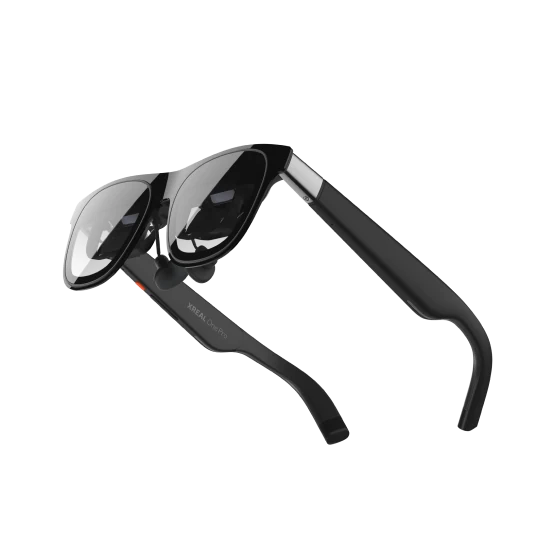
XREAL One Pro
AR display glasses
Display glasses for compatible USB-C video sources.
Consider: Confirm your device, lens fit and any required adapters.
View on Amazon Paid link · AmazonWatch or play on one screen
Verify wired video output and your app's external-display behavior. This is the simplest buying decision.
Use a phone desktop
Check the exact phone's wired DeX support, then plan a keyboard, pointer and charging.
Use tracked virtual screens
Check the app, processor, operating system and accessory requirements as well as video output.
Check your exact Android phone
Copy the model name and model number from Settings → About phone. Keep any regional variant in the record. Find the manufacturer’s specifications or support page and search for DisplayPort, DP Alt Mode, wired external display or a documented wired desktop mode.
Then check the glasses maker’s instructions for that phone. XREAL One Pro requires USB-C DisplayPort output. VITURE’s Pro and One guidance also makes the source device’s display capability part of the compatibility check.
If neither manufacturer confirms the combination, leave it unresolved. A shop listing that broadly says “Android compatible” is weaker evidence than a model-specific connection guide.
Android compatibility starting points
| Phone family | Useful manufacturer evidence | Remaining check |
|---|---|---|
| Samsung Galaxy S phones | Samsung lists its S8–S26 families for DeX cable/HDMI use. | Check the exact model, glasses and direct USB-C connection. |
| Galaxy Z Fold phones | Samsung lists Fold through Z Fold8 models for wired DeX. | Confirm your variant and intended display mode. |
| Galaxy Z Flip | Samsung lists Z Flip7 and Z Flip8; it excludes Z Flip7 FE and earlier Flip models. | Do not generalize from another Flip’s name. |
| Google Pixel 8 and later | Google documents wired external-display mirroring and projection. | Confirm the glasses-specific route and spatial feature requirements. |
| Other Android phones | Use the exact manufacturer’s display-output documentation. | USB-C presence, USB speed or a casting feature is insufficient. |
These are starting points from Samsung’s DeX guidance and Google’s Pixel display guide, checked 13 October 2026. They are not certification of every glasses and accessory combination.
Samsung also separates wired DeX, wireless DeX and DeX on a PC. Its current guidance says DeX on PC is unsupported on models updated to Android 15 and One UI 7 or later. That restriction does not mean the same phones have lost their wired external-display mode.
Choose mirroring, DeX or spatial apps
Mirroring shows the phone’s screen or an app’s supported external output. Check rotation, controls and your actual streaming service. A successful local video is not proof that every protected stream works the same way.
Samsung DeX offers an external desktop on supported phones. It is useful when your goal is Android apps in resizable windows, rather than several simulated monitors managed by glasses software. XREAL’s UltraWide guide says Samsung DeX can use its 21:9 format; other formats and source devices have their own limits.
SpaceWalker Mobile is VITURE’s environment for its browser and mini apps. It does not promise that every installed Android application becomes an independent spatial window. VITURE instructs Samsung users to disable DeX before using SpaceWalker. See the current mobile guide for the One UI settings.
The same guide gives separate limits for its Immersive 3D feature: Pixel 8/9 series lack the required resolution, and Samsung devices with Exynos processors are unsupported for that feature. These limits concern Immersive 3D, not a blanket verdict on basic video output.
For long work sessions and several screens, compare the computer-based options in AR glasses for work.
Connect and charge without guesswork
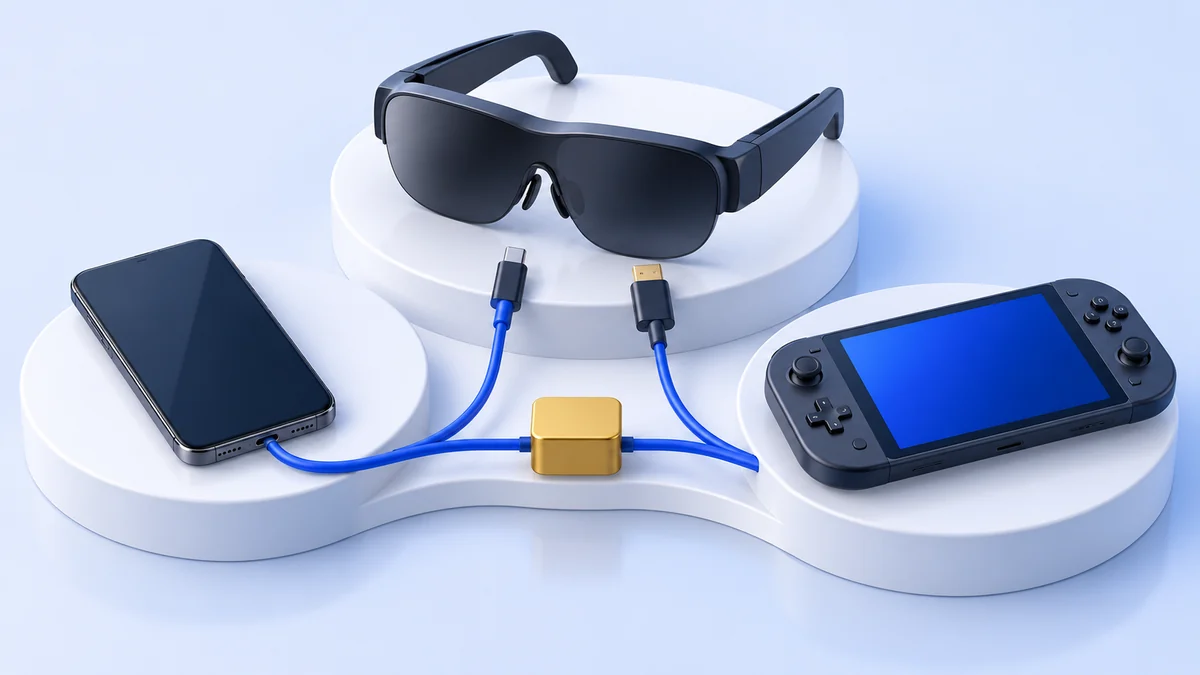
Start with phone → original glasses cable → glasses. Establish a working picture before adding hubs, extension cables or converters.
To charge at the same time, use a maker-documented adapter with a separate charger input and glasses video output. XREAL Hub lists smartphones with DP-enabled USB-C and XREAL One Pro. Its description does not turn a phone without DisplayPort into a video source.
- Confirm the cable carries video, power and any required USB data.
- Check the adapter's input and output directions.
- Verify that the spatial app supports the adapter, not merely a direct cable.
- Include the charger and accessories in your total purchase.
If the same glasses will be used with a handheld, our Steam Deck setup guide covers the shared charging problem. For another household phone, check iPhone compatibility independently.
Troubleshoot the connection
| What happens | Check next |
|---|---|
| No picture | Recheck model-specific video output, the original cable and a direct connection. |
| Picture works, tracking does not | Check software, permissions, firmware and the USB data path. |
| SpaceWalker opens incorrectly on Samsung | Follow VITURE’s instructions to disable DeX for SpaceWalker use. |
| Only one streaming app fails | Investigate that service’s external-display or browser restrictions. |
| Hub works for charging only | Confirm its glasses port actually outputs video and required data. |
Change one component at a time. Record the successful direct setup before testing an accessory so you can identify where the connection changes.
Which glasses make sense for Android?
Shortlist by connection first, fit second and spatial features third. XREAL One Pro versus VITURE Pro compares the named models without treating the whole brands as interchangeable.
XREAL One Pro is worth considering if your phone supplies the required video and you want its native spatial-display approach. Check the exact retailer model, IPD size, included cable and return terms:
View on AmazonPaid link
Android glasses FAQ
Can any USB-C Android phone use AR glasses?
No. Charging and data support do not establish DisplayPort video output. Check the exact model and the glasses maker's requirements.
Do I need a Samsung phone?
No. Samsung DeX is one desktop route. Other phones can provide supported wired display output, but each phone and desired spatial feature needs its own check.
Does Pixel support mean every SpaceWalker feature works?
No. Google's wired-display guidance and VITURE's feature restrictions answer different questions. In particular, check the current Immersive 3D requirements separately.
This guide uses manufacturer documentation checked 13 October 2026. It does not claim hands-on tests of every phone. See how we research and the AR glasses overview for the wider buying criteria.
Sources & research approach
Read how we research our guides and use the sources below to check the information behind this article.
View the sources
- Samsung: DeX compatibility and connection types
- Google: project your Pixel phone's screen
- XREAL One Pro: USB-C DisplayPort requirements
- XREAL Hub: compatible phones and glasses
- XREAL: ultrawide support and Samsung DeX
- VITURE: Pro and One series glasses requirements
- VITURE: SpaceWalker Mobile features, device restrictions and Samsung settings
Explore the related guides in AR and display glasses.