AR glasses for iPhone: models, cables and adapters
We may earn a commission when you buy through links on this page. As an Amazon Associate I earn from qualifying purchases. How this works
A supported USB-C iPhone can connect directly to compatible display glasses with the correct video cable. Check your exact model first: Apple excludes iPhone 16e and 17e from its wired display list. Lightning iPhones need a documented adapter chain. Add charging or head tracking only after confirming those features on the complete phone, glasses and accessory setup.
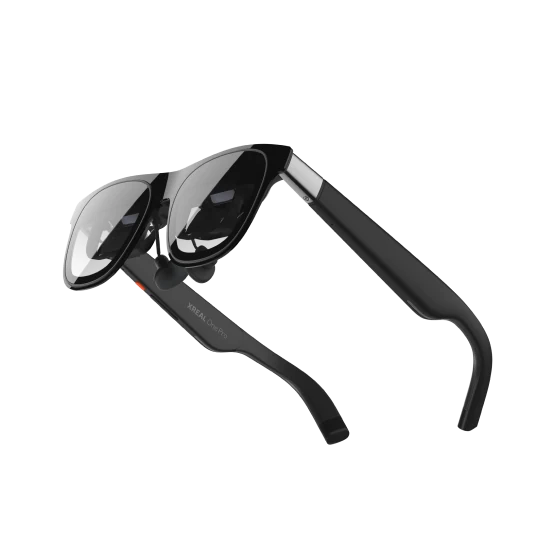
AR display glasses
Wearable displayDisplay glasses for compatible USB-C video sources.
Check first: Confirm your device, lens fit and any required adapters.
Check price on Amazon Paid link · AmazonConnecting AR glasses to an iPhone starts with the phone you own. A USB-C connector alone does not confirm video output, and a Lightning model needs a different accessory plan. Check that connection before choosing a larger personal screen.
First, find your model in the compatibility table. Then follow the cable or Lightning adapter route, plan charging, and compare basic screen mirroring with the spatial features your apps can use.
Compatibility and source notes
Manufacturer guidance checked 13 October 2026. This guide uses published connection requirements rather than hands-on tests of every phone and adapter. iPhone Air is not named in Apple's wired-display list, and VITURE explicitly excludes it for the documented Pro and One setup. Unlisted combinations need model-specific confirmation.
Start with the original glasses cable and a direct connection. Add a charging hub after the basic picture works.
Budget for the complete video conversion chain. A single USB-C cable cannot replace it.
Resolve the phone's video support before ordering glasses. A matching connector is insufficient.
Which iPhones support a USB-C display?
Find your model in Settings → General → About. Apple’s external-display guidance gives this starting point:
| iPhone | Wired USB-C display status | Buying consequence |
|---|---|---|
| iPhone 15 models | Supported | Check the glasses and supplied cable. |
| iPhone 16 models, except 16e | Supported | Check accessories separately. |
| iPhone 17 models, except 17e | Supported | Confirm the glasses maker’s model guidance. |
| iPhone 18 Pro models | Supported | Confirm the complete connection. |
| iPhone 16e and iPhone 17e | Excluded | A passive cable does not add video output. |
| iPhone Air | Not named by Apple; VITURE excludes it | Do not buy it for a VITURE wired setup. |
The iPhone Air specifications describe charging and USB 2, without listing DisplayPort. VITURE’s Pro and One guidance explicitly excludes iPhone Air and 16e. VITURE’s newest flagship, the VITURE Beast, lists the same two exclusions. For an unlisted combination with another brand, seek model-specific confirmation; USB data speed does not prove display support.
Match the glasses to the video connection
XREAL One Pro requires USB-C DisplayPort output. A supported phone supplies the video; the glasses display it. The straightforward route looks like this:
Choose based on what you need after connecting. Our XREAL One Pro versus VITURE Pro comparison explains fit and spatial-display differences, and our best AR glasses guide compares the current XREAL, VITURE, RayNeo and Rokid models. If native XREAL anchoring suits your use, review the exact model and lens-size options at the retailer:
Check price on AmazonPaid link
Skip this purchase if your phone’s wired output is unresolved or your essential app does not support the intended external-display use.
What about a Lightning iPhone?
VITURE documents a specific route for compatible Lightning iPhones, including iPhone 14 models and iPhone SE third generation: iPhone → official Apple Lightning Digital AV Adapter → VITURE HDMI XR Adapter → supported VITURE glasses. The Apple adapter is a separate purchase. Follow VITURE’s HDMI XR Adapter instructions for its power ports and charging arrangement.
This is a VITURE connection, not a universal adapter prescription. The documented glasses port does not establish support for XREAL or another brand. Check both the adapter and glasses model; later VITURE models have different restrictions.
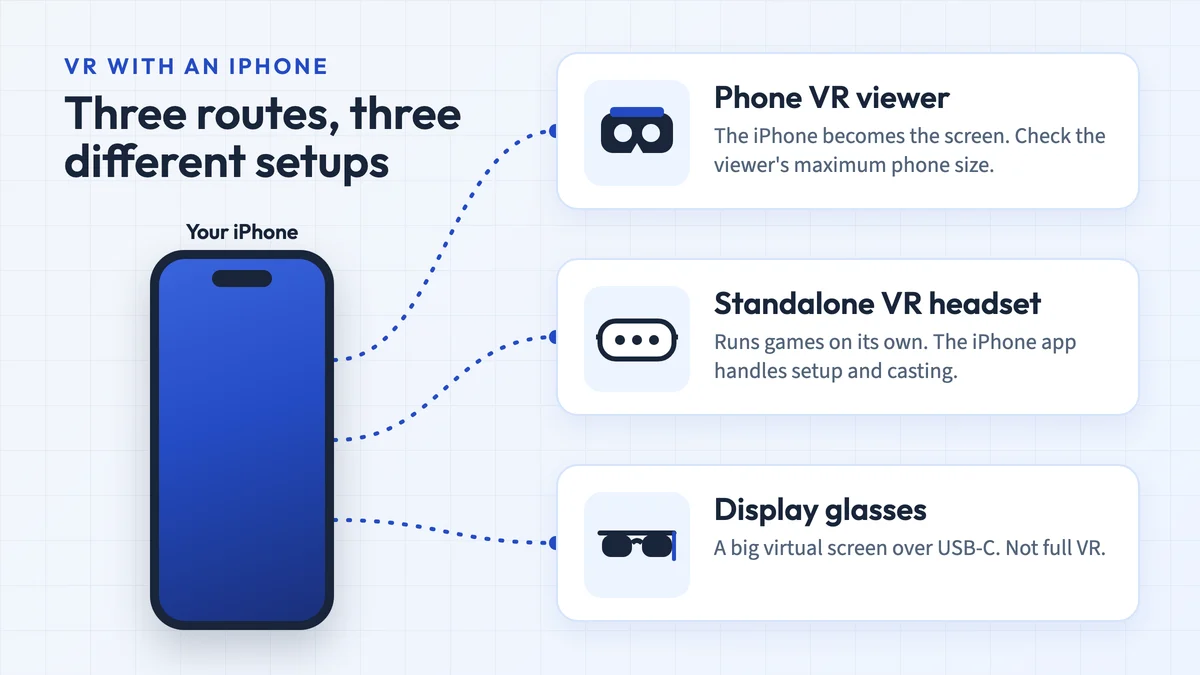
For an older phone, compare the complete accessory cost with your expected use. An occasional film may justify a simple setup; a daily workspace needs a closer software check. For VR rather than a virtual screen, our best VR headset for iPhone guide compares phone viewers with standalone Quest headsets.
Plan charging alongside video
A direct glasses connection occupies the phone’s USB-C port. To add wired charging, choose a hub explicitly documented to pass video to your glasses while feeding power to your phone.
XREAL Hub lists DP-enabled USB-C phones and XREAL One Pro. It excludes Lightning iPhones. For another brand, use that manufacturer’s accessory instructions rather than assuming the same ports carry the same signals.
- Record the phone, glasses and adapter model names.
- Check which cable comes with the glasses.
- Find the adapter's display port and charger input in its diagram.
- Include every required accessory when comparing the purchase.
The same port-sharing problem applies to handheld gaming. See the Steam Deck connection and charging guide if you want one pair for both devices.
Screen mirroring and spatial features are different checks
Apple describes the default external display as mirroring, with app-specific second-screen exceptions. That does not guarantee a desktop with several independent app windows.
XREAL’s One series quick guide describes built-in Follow and Anchor modes. Its UltraWide documentation lists iPhone among devices that do not supply its ultrawide display mode. Do not choose an iPhone setup expecting the computer workspace shown in a product demonstration.
VITURE’s SpaceWalker Mobile guide requires its specified adapter for iPhone head tracking. Its browser and mini apps also differ from opening every installed iOS app on independent screens. Check your streaming service: the guide specifically says Netflix cannot be accessed through SpaceWalker’s browser.
If several work screens are the priority, read AR glasses for work. For a second phone, use the Android model checks rather than transferring iPhone assumptions.
Questions before you buy
Will any USB-C cable work?
Use the supplied glasses cable or a replacement explicitly approved for video and the required device connection. A charging cable’s wattage does not establish those functions.
Does the iPhone 16e work like the iPhone 16?
For wired external displays, no. Apple explicitly separates it from the supported iPhone 16 models. AirPlay support does not create a direct USB-C video path into glasses.
Should I choose the phone or the glasses first?
Start with the phone you own. Then shortlist documented setups that support your app, charging requirement and vision correction. Check the retailer’s exact bundle and return terms before ordering.
Is this a hands-on test?
No. This is a manufacturer-documentation guide. It does not claim measured comfort, battery life, latency or a tested result for every adapter combination.
Scope and method
We checked the cited manufacturer guidance on 13 October 2026. Published display requirements inform the recommendations; uncertain model and adapter combinations remain unresolved. See how we research and the AR glasses overview for the broader buying process.
Research behind this guide
Check the linked specifications and support documents, or read how we research. Original review experience stays attributed to its author.
View 10 sources
- Apple: USB-C connections and supported iPhone displays
- Apple: iPhone Air technical specifications
- XREAL One Pro: connection requirements
- XREAL Hub: source devices and charging support
- XREAL: One series quick guide
- XREAL: UltraWide Mode and supported source devices
- VITURE: compatible devices
- VITURE: HDMI XR Adapter connection guide
- VITURE: SpaceWalker Mobile features and limitations
- VITURE: Pro and One guidance, including excluded iPhone models
Explore the related guides in AR and display glasses.