Can You Play VRChat Without VR?
We may earn a commission when you buy through links on this page. As an Amazon Associate I earn from qualifying purchases. How this works
Yes. VRChat has a free Desktop mode for Windows PCs, and the September 2026 checks also covered Steam Deck, Android, iPhone and iPad play. You can talk, explore worlds and use avatars without buying a headset. Desktop mode lacks free arm movement, while mobile devices have compatibility limits. Check your device requirements before installing; buy VR hardware only if you want tracked head and hand movement, and then see our best VR headset for VRChat picks.
You can try VRChat before buying a headset. The first decision is whether your computer or phone meets its requirements. Playing without VR lets you explore worlds and talk to people, but it changes how you move your avatar and which worlds your device can open.
Start with the device options, then follow the Desktop mode steps. The requirements and headset guide explain when extra hardware helps.
Platform status and source notes
Short answer: yes, you can play VRChat without VR
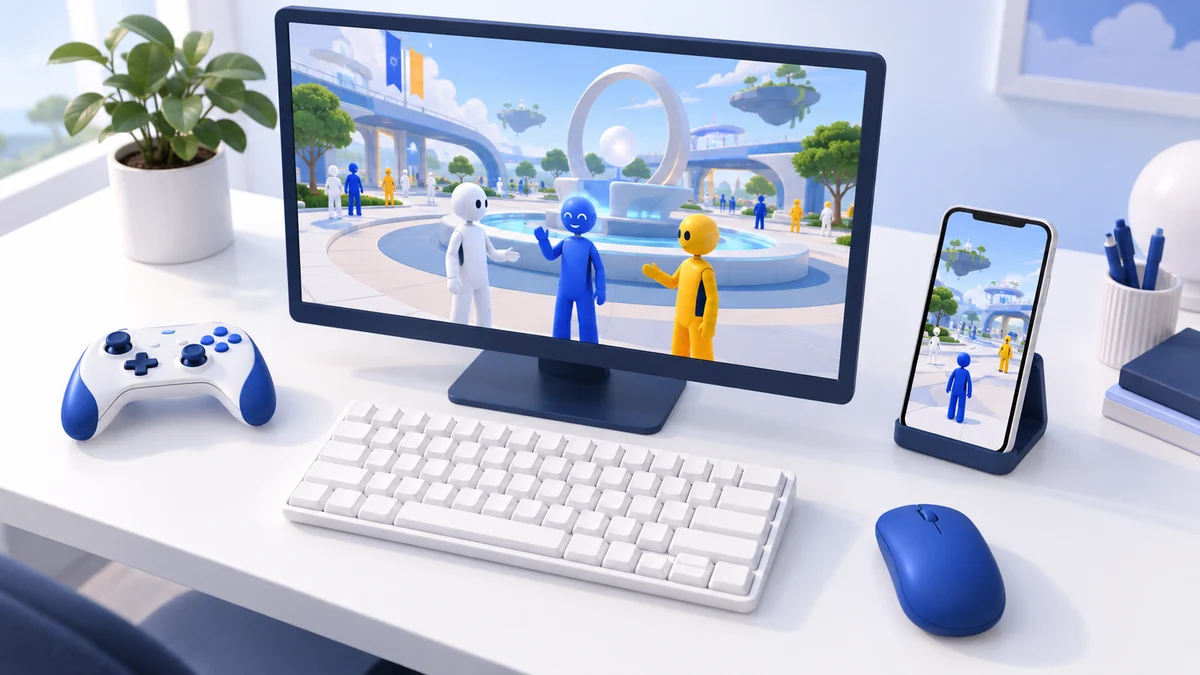
VRChat's own FAQ says you don't need a headset: Desktop mode lets you play with a mouse, keyboard and monitor on a Windows PC, and the game is free on Steam. Since October 2025 there is also a full iPhone, iPad and Android release (VRChat). The Steam Deck works through Proton. There is no macOS version. Checked 24 September 2026.
Can You Play VRChat Without a VR Headset?
Yes. VRChat does not require a headset. The Steam listing says the game was built for VR headsets but that one is “not required to join in on the fun”, and the Community FAQ describes Desktop mode as a way to play with a mouse, keyboard and monitor.
Desktop players share the same worlds as VR players: you get your account, friends list, voice chat, avatars and world browsing. What you lose is body tracking. VRChat’s keyboard and mouse documentation states that “it is not possible to move your arms while in Desktop mode currently”, and Wikipedia’s VRChat article notes that desktop users can’t do interactions that need two hands.
If you later decide you want the full experience, our guide to the best VR headsets for VRChat covers the headset side.
Ways to play VRChat without a VR headset
These are the non-VR options we could confirm from VRChat’s own pages and the app stores:
| Device | Supported without VR? | What you need | Main limits |
|---|---|---|---|
| Windows 10/11 PC | Yes, official Desktop mode | Free download on Steam or the Meta PC app; GTX 970-class graphics or better | No free arm movement; no two-handed interactions |
| Steam Deck and Linux | Yes, through Valve’s Proton layer | Steam; no native Linux client | Runs the Windows version through a compatibility layer |
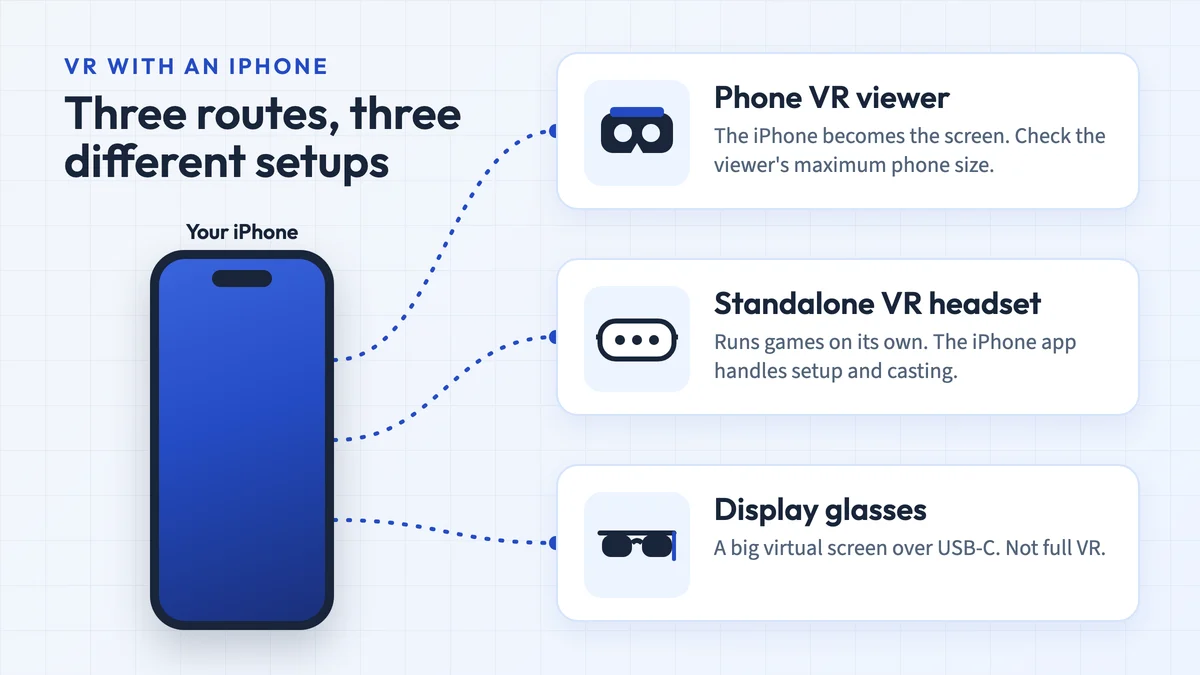
| Android phone or tablet | Yes, since October 2025 | Android 10 or later, 6 GB of RAM or more | Some worlds are PC-only; PC avatars can appear as simplified stand-ins |
| iPhone or iPad | Yes, since October 2025 | iOS 17 or later, 6 GB of RAM or more | Devices with less RAM get only the Companion app (friends, no worlds) |
| Mac | No native app | None available | VRChat offers no macOS version; the VRChat Wiki lists Nvidia’s GeForce NOW cloud service as another way to play |
The PC and Steam Deck details come from the Steam listing and the VRChat Wiki, which says VRChat “can be played on Linux, including the Steam Deck, through Valve’s Proton compatibility layer” and lists the game as Verified on Steam Deck. When VRChat added Easy Anti-Cheat in 2022, its developers said they had tested it on Proton and Steam Deck and that it “works fine on these platforms” (GamingOnLinux).
The mobile details come from VRChat’s launch post and UploadVR, which adds that mobile players can join worlds published for several platforms, but “some worlds – including some of the most impressive worlds – are PC-only”. VRChat’s “Impostors” system generates fallback versions of PC avatars so mobile users can still see them.
A standalone Meta Quest also runs VRChat without a PC (Meta Store), but that is still VR, so it’s covered further down.
How to start VRChat in Desktop mode
According to VRChat’s Community FAQ:
- Steam: install VRChat (it’s free), press Play and choose “Launch in Desktop (Non-VR) mode”.
- Meta PC app (formerly Oculus): in your library, click the three dots on the VRChat tile and choose “Launch in Desktop Mode”.
You can sign in with a VRChat account created on VRChat’s website, or use your Steam, Meta, Google, Pico or VIVE account (VRChat Wiki). On a phone or tablet, install VRChat from the App Store or Google Play and play with the touchscreen.
Desktop controls
Desktop mode uses standard first-person controls. The main keys from VRChat’s keyboard and mouse page:
| Action | Key |
|---|---|
| Move / look | W, A, S, D / mouse |
| Jump, crouch, crawl, sprint | Space, C, Z, Shift |
| Quick Menu / Action Menu | Escape / R |
| Talk (push-to-talk or toggle) | V |
| Text chat | Y |
| Pick up / drop | Left click / right click |
| Hand gestures | Shift + F1 to F8 |
| Screenshot | F12 |
VRChat’s controls page also supports an Xbox-style gamepad on desktop. In the settings you can change mouse sensitivity and set the vertical field of view between 50 and 100 degrees (VRChat Wiki).
VRChat System Requirements
While you don’t need a VR headset, you do need hardware that meets VRChat’s minimums.
Windows PC
The minimum requirements on the Steam store page are:
- OS: Windows 10 or 11 (64-bit)
- Processor: Intel i5-4590 or AMD FX 8350 or better
- Memory: 4 GB RAM
- Graphics: NVIDIA GeForce GTX 970 or AMD Radeon R9 290 or better
- DirectX: version 11
- Storage: 1 GB
- Network: broadband internet connection
Steam lists no recommended specification. Treat the storage figure as the size of the app only: the VRChat Wiki puts the real need at 31.5 GB (about 1.5 GB for the app plus a 30 GB minimum cache for downloaded worlds and avatars) and recommends a download speed of 25 Mbps or more. Busy worlds with many detailed avatars need more than a minimum-spec PC. Our PC VR requirements guide and graphics card guide explain how to check your hardware.
Android, iPhone and iPad
- Android: Android 10 or later. The launch post says devices with less than 6 GB of RAM can’t install the app.
- iPhone and iPad: iOS 17 or later. Devices with less than 6 GB of RAM are limited to the Companion app, which Road to VR describes as letting you keep up with friends “but not launch into worlds”. UploadVR lists the iPhone 12 Pro and 13 Pro models (including the Pro Max versions), any iPhone 14 or newer, the fourth-generation iPad Pro, fifth-generation iPad Air and seventh-generation iPad mini or newer as meeting the full requirement.
Is Playing VRChat Without a Headset Good?
For talking to people, exploring worlds and trying avatars, yes. You miss the physical side: waving, dancing, holding objects with both hands and full-body tracking all need a headset.
Dustin Jermalowicz, who wrote the first version of this guide, played both ways:
The good thing with VRChat is that the experience doesn’t really make it necessary to get the most out of the game. I’ve been able to play the game with a headset and without, and can tell you that I actually prefer playing without a headset. The main issue I have is that when I play with a headset on, the younger players end up getting in my face too often, making it hard for me to see anything.
Playing the game without VR alleviates almost all of this.
So, if you’re not the type of person who likes having avatars shoved right in your face, going without a headset is probably the best way to go.
Note: VRChat now has a setting for exactly this problem. Personal Space, under Comfort & Safety in the main menu, makes avatars disappear if they get too close; friends aren't affected (VRChat Wiki).
Prepare for Insanity: Safety Settings
Dustin’s description of the platform still holds:
VRChat is the best and worst of the internet. The app essentially stands as a way for players around the world to communicate, with different rooms and characters being made available. You can be dressed up like Homer Simpson and chatting with Barney the Dinosaur. You can hear someone dressed up like Lambchop swearing at someone dressed like Jesus. The possibilities are endless.
This game is not for the weak of heart. You have to understand that basically anything goes, at least until you block a player. I’ve heard what sounds like children saying some of the most vulgar and racist things in this game, and it does ruin the experience a bit. Conversely, I’ve also had enlightening conversations with people from Japan and Egypt, and I can’t help but think that I’d never have talked to them if not for the app.
Since then VRChat has added more safety tools, and they work the same way on desktop:
- Age rules: the Terms of Service require users to be at least 13, and users aged 13 to 17 need a parent’s or guardian’s consent.
- Shield Levels: the Safety menu has Maximum, Normal, None and Custom presets. They control whose voices, avatars and avatar effects you see and hear (VRChat documentation).
- Per-user controls: from a player’s menu you can mute them, block them, or use “Hide Avatar”, which hides their avatar and turns off everything except voice.
- Age verification: optional ID checks through Persona became available to VRChat Plus subscribers in January 2025. Verified adults can create age-verified group instances if their group’s permissions allow it (VRChat).
VRChat Avatars Without VR
One of the real highlights in VRChat is the chance to adopt the avatar of your choice, and that works without a headset too. Avatars are offered by users in different worlds, often in long hallways with dozens of options, and you can also upload your own.
Dustin’s favourites when he wrote the original guide:
I’ve combed through way more VR avatars than I’d like to admit, and I think these are the best ones:
- Barney Gumble (The Simpsons)
- Goku (Dragon Ball Z)
- BB8 (Star Wars)
- Naruto (Naruto)
- Darth Maul (Star Wars)
Public avatars are uploaded and removed by players, so we couldn’t confirm that these particular ones are still available. On desktop your avatar shows its hand gestures (Shift + F1 to F8) but can’t move its arms freely. On a phone or tablet, avatars built only for PC can appear as simplified Impostors (UploadVR).
When a VR headset is worth it for VRChat
Start without one: Desktop mode and the mobile apps cost nothing, so they are the cheapest way to find out whether you like VRChat. A headset makes sense if:
- you want your avatar to move with your head and hands, for dancing, gesturing or playing games in worlds built for motion controls;
- the worlds you want to visit need two-handed interactions;
- you want full-body tracking, which is only possible in VR.
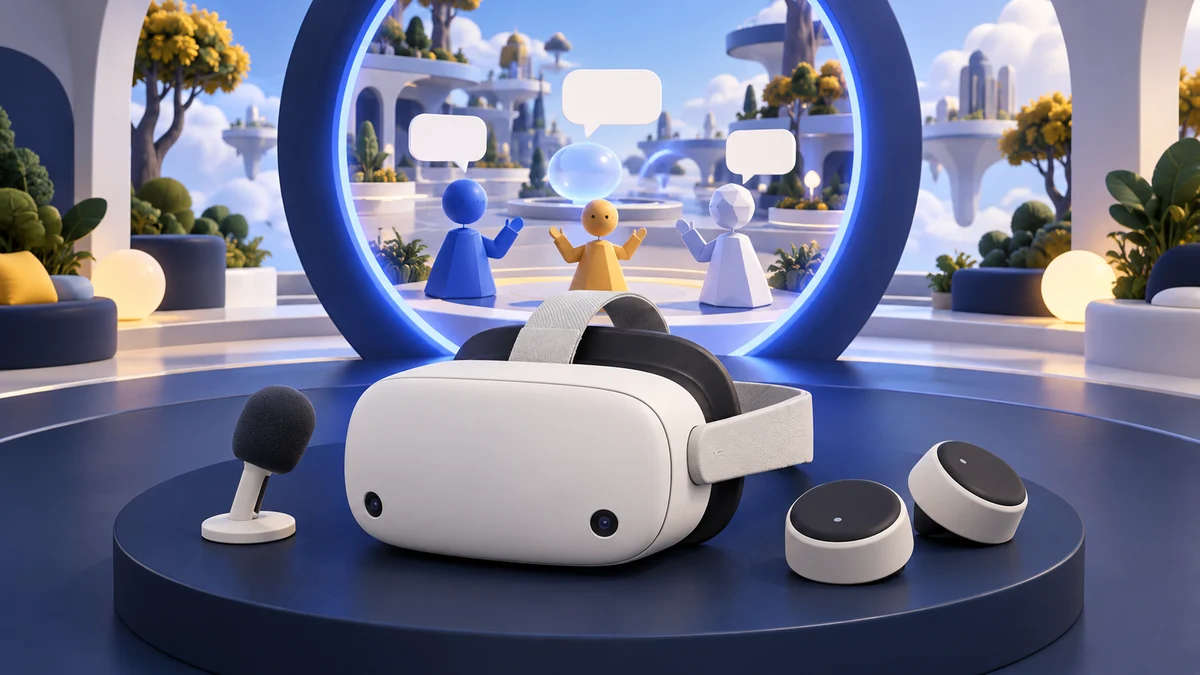
If you don’t have a gaming PC, a standalone Meta Quest is the simplest route: VRChat runs directly on the headset from the Meta Store, and the VRChat Wiki lists the Quest 2, Quest 3, Quest 3S and Quest Pro as supported. Of those, Meta still sells the Quest 3 and Quest 3S. After Meta’s April 2026 price rise they cost $350 (Quest 3S, 128 GB) and $600 (Quest 3, 512 GB) in the US (UploadVR). Our Quest 3 vs Quest 3S comparison and VRChat headset guide go into the choice. If you already have a PC that runs VRChat well, any SteamVR-compatible headset works with the Steam version.
VRChat without VR: FAQ
Is VRChat free if you play without VR?
Yes. VRChat is free to play on Steam, and Steam says it will stay free "for the foreseeable future". It has in-app purchases and an optional VRChat Plus subscription, but neither is needed to play in Desktop mode (Steam).
Can desktop players talk to people in VR?
Yes. Desktop and VR players join the same instances and use the same voice and text chat. Mobile and Quest players can join too, except in worlds that are published only for PC.
Can I play VRChat on a laptop?
Yes, if it runs Windows 10 or 11 and its graphics are at least at the level of a GTX 970 or Radeon R9 290, VRChat's minimum. Many thin laptops with integrated graphics fall short. See our guide to VR-ready laptops.
Can I play VRChat on a Mac?
Not natively. VRChat's Steam version is Windows-only and there is no macOS app; Mac support is an open request on VRChat's feedback board. If you use Apple devices, the iPhone or iPad app is the practical option. The VRChat Wiki also lists VRChat as available through Nvidia's GeForce NOW cloud gaming service; we haven't checked how well that works on a Mac.
Is VRChat on PlayStation, Xbox or Nintendo Switch?
No. VRChat runs on Windows PCs, standalone headsets such as Meta Quest, Pico and VIVE models, and Android and iOS devices (VRChat Wiki). There is no console version.
Can I use a controller instead of a keyboard?
Yes. VRChat supports an Xbox-style gamepad in Desktop mode (VRChat documentation), and the Steam Deck uses its built-in controls.
VRChat without a headset: what to expect
VRChat is certainly a strange experience, and it’s one that you don’t need a VR headset for. On a Windows PC or Steam Deck, Desktop mode gives you the same worlds, avatars and conversations as VR players, without arm movement. On a recent iPhone, iPad or Android device, the mobile app does the same, with fewer worlds. The original author preferred playing without a headset, and VRChat’s Personal Space and Shield Level settings now give you more control over what you see and hear.
Make sure your device meets the requirements above, set your safety options before joining public worlds, and be prepared for just about anything to happen.
This guide replaces an earlier version by Dustin Jermalowicz, first published January 2020.
Research behind this guide
Check the linked specifications and support documents, or read how we research. Original review experience stays attributed to its author.
View 17 sources
- VRChat on Steam
- Community FAQ | VRChat
- Keyboard and Mouse | VRChat Documentation
- Controls | VRChat Documentation
- Getting Started | VRChat Wiki
- Settings | VRChat Wiki
- VRChat is Now Available on iOS and Android! | VRChat
- VRChat Is Now Available On iPhone, iPad & Flatscreen Android | UploadVR
- 'VRChat' Officially Releases on Android & iOS | Road to VR
- VRChat adds Easy Anti-Cheat, but Linux and Steam Deck work fine | GamingOnLinux
- MacOS Support | VRChat Feature Requests
- VRChat Safety and Trust System | VRChat Documentation
- Terms of Service | VRChat
- Age Verification Now Available for VRC+ Subscribers | VRChat
- VRChat on Meta Quest | Meta Store
- Meta Is Increasing The Price Of Quest 3 & Quest 3S | UploadVR
- VRChat | Wikipedia
Explore the related guides in VR apps.