Best VR Headset for iPhone in 2026: What Actually Works
We may earn a commission when you buy through links on this page. As an Amazon Associate I earn from qualifying purchases. How this works
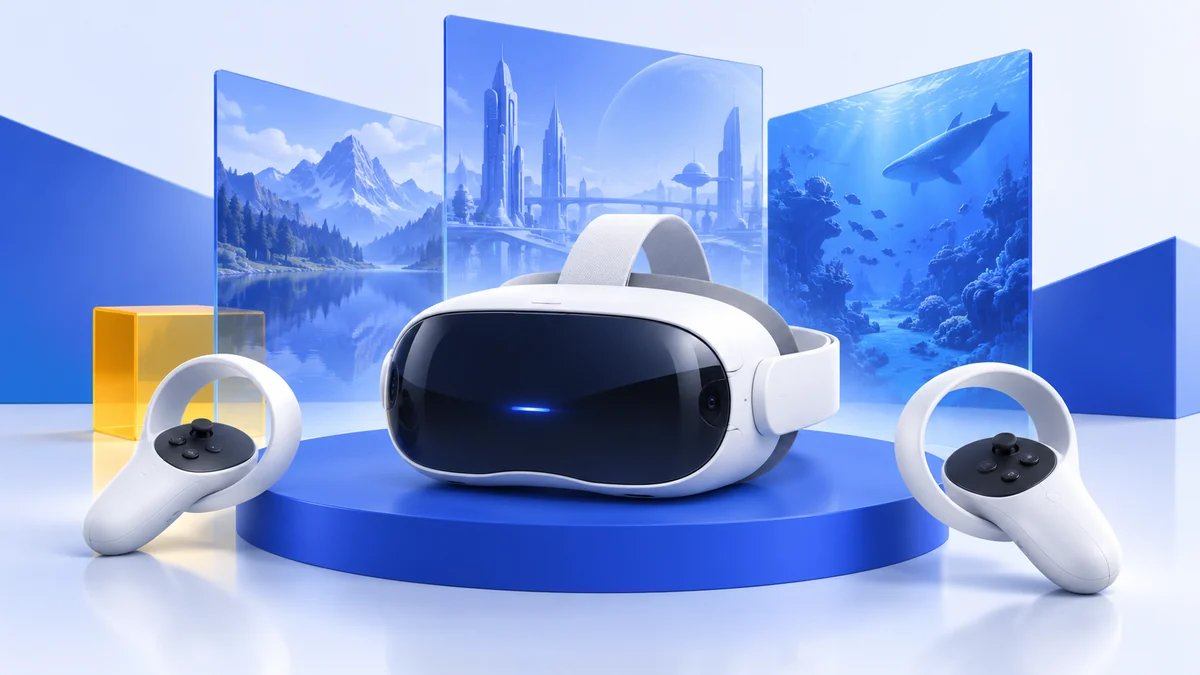
For most iPhone owners, the best VR headset is a Meta Quest 3S. It runs VR games on its own, so your iPhone only handles setup and casting through Meta's app, and it works with any iPhone on iOS 15.1 or later. If you want the iPhone itself to be the screen, a phone viewer is the cheapest route, but it must fit your iPhone and only a few iOS apps still support it.
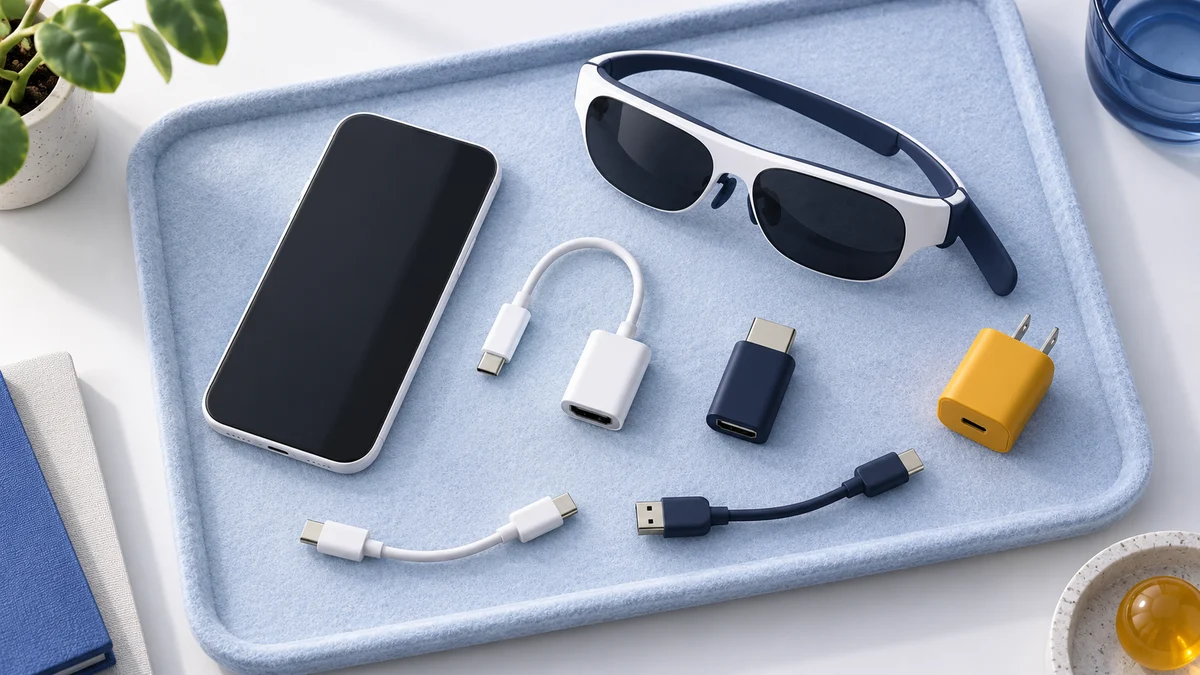
Want films on a big screen rather than VR? USB-C iPhones from the iPhone 15 onward can drive display glasses, except the 16e and 17e; Apple doesn't list the iPhone Air. Apple's own Vision Pro is a separate standalone computer, not an iPhone accessory.
Our iPhone VR picks

Meta Quest 3S
128 GB configuration
Best for most iPhone ownersPlays VR games on its own; your iPhone handles setup and casting in the Meta Horizon app.
Check first: Your iPhone runs iOS 15.1 or later.
Check price on Amazon Paid link · Amazon
Meta Quest 3
512 GB configuration
For sharper lensesPancake lenses and more pixels per eye than Quest 3S, with the same iPhone app.
Check first: Whether the optical upgrade is worth the extra cost for your use.
Check price on Amazon Paid link · Amazon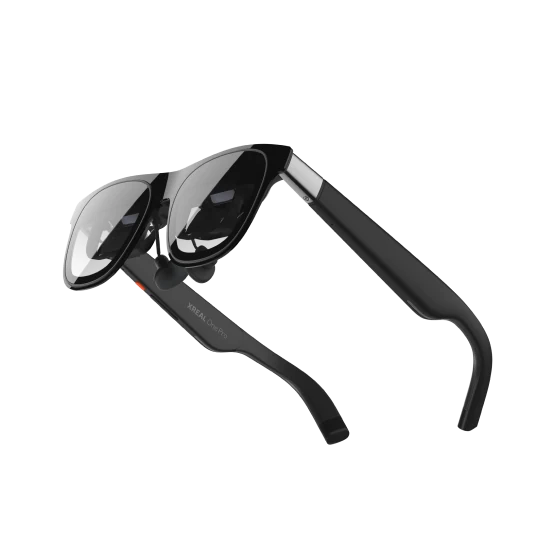
XREAL One Pro
AR display glasses
For films, not VRA large virtual screen from a compatible USB-C iPhone.
Check first: iPhone 15 or later, but not 16e or 17e; Apple doesn’t list iPhone Air.
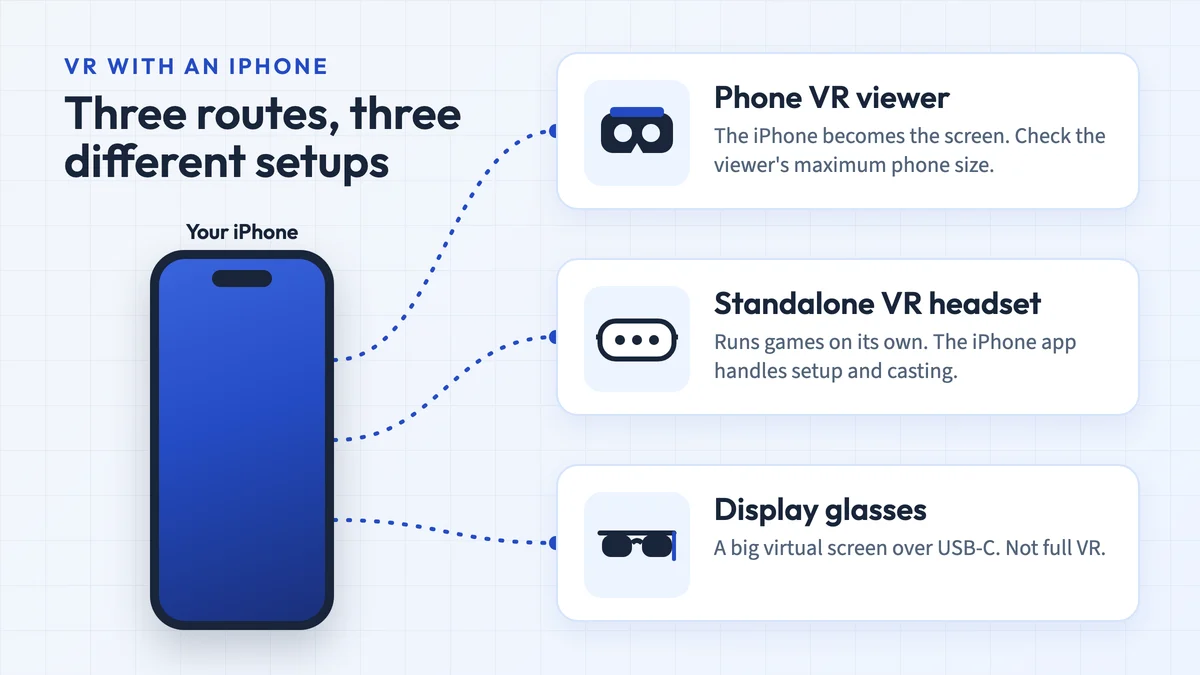
Check price on Amazon Paid link · Amazon"VR headset for iPhone" covers three very different products. A phone viewer turns your iPhone into the display. A standalone headset such as Meta Quest has its own screens and processor, and uses the iPhone only as a companion. Display glasses show your iPhone's screen as a large virtual display, but they don't run VR games.
Choose the route first, then check your iPhone's size, iOS version or video output in the tables below. Owners of a specific older model can also read our iPhone SE and iPhone 7 Plus guides.
Compatibility and source notes
Checked 15 October 2026 against Apple's model list and display guidance, Meta's app requirements, Google's Cardboard and YouTube help, and XREAL's connection requirements. We have not tested viewers with every iPhone: a viewer's fit depends on the size range in its listing and on your phone's thickness and camera bump. Prices and stock are at the retailer.
You want VR games
Choose a Meta Quest 3S or Quest 3. The games run on the headset; the iPhone app activates it and lets others watch.
You want the cheapest try
A phone viewer can show Cardboard apps and 360-degree content, if it fits your iPhone and the app you want still supports it.
You want films on a big screen
Display glasses connect to a compatible USB-C iPhone and show a large virtual screen. They are not VR.
Compare the three routes
| Route | What shows the picture | What the iPhone does | iPhone requirement | Main limit |
|---|---|---|---|---|
| Standalone headset (Quest 3S, Quest 3) | The headset’s own displays and processor | Activates the headset, opens the store, receives casts | iOS 15.1 or later for the Meta Horizon app | A separate, larger purchase |
| Phone VR viewer | The iPhone’s screen behind two lenses | Runs the VR app and tracks head rotation | Must fit the viewer’s phone-size range | Few maintained iOS apps; no YouTube VR mode |
| Display glasses | Displays inside the glasses | Sends video over USB-C | iPhone 15 or later, except 16e and 17e (Air not listed) | A virtual screen, not VR games |
Sources: Meta’s app requirements, Google’s YouTube help and Apple’s display guidance.
Best for most iPhone owners: Meta Quest 3S
Quest 3S is a standalone headset: its games and apps run on the headset, with its own tracked controllers. Your iPhone is a companion. Meta’s setup uses the free Meta Horizon app to activate the headset, and on an iPhone the app needs iOS 15.1 or later, Wi-Fi and Bluetooth. After activation you finish setup inside the headset.
The app is also how other people can watch. Meta’s casting guide lets you cast the headset view to a phone, as long as the phone and headset are on the same Wi-Fi network and signed in to the same Meta account. That is useful when a child or a first-time player is wearing the headset.
Choose Quest 3S if you want real VR games without buying a gaming PC. Skip it if you only want to watch films; display glasses are simpler for that. Quest headsets can also connect to a Windows gaming PC later; our best VR headset for PC guide covers that route. Quest 3S runs for about 2.5 hours per charge, according to Meta; our Quest 3 head strap and battery guide compares battery straps that fit it.
Check price on AmazonPaid link
Quest 3 for sharper lenses
Quest 3 uses the same iPhone app and setup. It has pancake lenses and 2,064 × 2,208 pixels per eye, more than Quest 3S, according to Meta’s comparison. That matters most if you’ll read menus, watch films in the headset or use mixed reality often. Our Quest 3 vs Quest 3S comparison explains the trade-off in detail.
Check price on AmazonPaid link
Use the iPhone itself: phone VR viewers
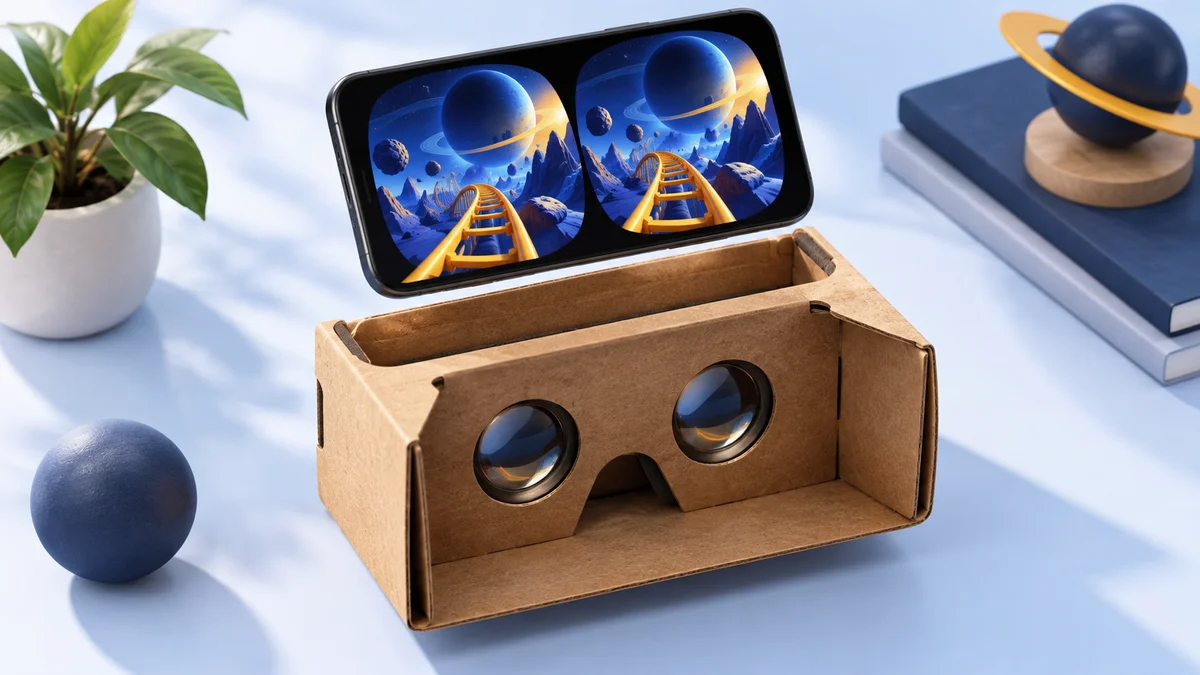
A phone viewer is a plastic or foam headset with two lenses and a tray. Your iPhone sits in the tray, shows a split-screen image and tracks which way you turn your head. A typical viewer can’t track your hands or your movement around a room the way Quest does.
Three checks decide whether it’s worth buying:
- The app. Google’s Cardboard app is still free on the App Store and needs iOS 15 or later. YouTube is the big gap: Google’s help page says “Cardboard is not supported for iPhone and iPad”, so a viewer won’t give you YouTube’s VR mode on an iPhone. Our list of VR games for iPhone that are still on the App Store shows what else runs.
- The fit. The viewer’s listing gives a phone-size range. Your iPhone’s screen size must be inside it, and the phone must fit the tray’s depth with its case off. Many older viewers were built for small phones: the VR Box 2.0 was listed for 3.5–6.0-inch phones, which excludes every current iPhone.
- The controls. A viewer button or a paired Bluetooth controller only helps in apps that support it. Check the app description before paying extra for a remote.
To set one up, install the Cardboard app and scan the QR code supplied with the viewer, which tells the app the viewer’s lens settings, as Google’s iPhone instructions describe. Then place the iPhone in the tray with the screen centred between the lenses.
For phone checks beyond iPhone, see our guide to phones that still work for VR.
Which size is your iPhone?
Find your model in Settings → General → About, then compare its screen size with the viewer’s listed range. A viewer listed up to 6.7 inches won’t hold a 6.9-inch Pro Max.
| Screen size | iPhone models |
|---|---|
| 4.7 inches | iPhone SE (2nd and 3rd generation) |
| 5.4 inches | iPhone 12 mini, iPhone 13 mini |
| 6.1 inches | iPhone 12, 12 Pro, 13, 13 Pro, 14, 14 Pro, 15, 15 Pro, 16, 16e, 17e |
| 6.3 inches | iPhone 16 Pro, 17, 17 Pro, 18 Pro |
| 6.5 inches | iPhone Air |
| 6.7 inches | iPhone 12 Pro Max, 13 Pro Max, 14 Plus, 14 Pro Max, 15 Plus, 15 Pro Max, 16 Plus |
| 6.9 inches | iPhone 16 Pro Max, 17 Pro Max, 18 Pro Max |
Sizes from Apple’s model list. The size range only covers the screen: also check thickness and the camera bump against the viewer’s tray.
For films: display glasses
Display glasses such as XREAL One Pro show your iPhone’s picture as a large virtual screen in front of you. They suit films, streaming apps and some games played on the phone, but they don’t make iPhone apps into VR.
The connection is the important check. Apple’s display guidance covers USB-C video for the iPhone 15 and later models, but excludes the iPhone 16e and 17e and doesn’t name the iPhone Air, and XREAL One Pro needs a USB-C DisplayPort video signal. Older Lightning iPhones need an adapter chain that only some glasses support. Our AR glasses for iPhone guide lists each model, the Lightning route and how to charge while you watch.
Check price on AmazonPaid link
What about Apple Vision Pro?
Apple’s Vision Pro is a standalone headset that runs on its own M5 chip rather than on an iPhone. It works alongside one: spatial photos and videos you capture on an iPhone can be viewed on Vision Pro. It’s a different kind of purchase from everything above, so compare it with a Mac or iPad rather than with a phone viewer.
VR headset for iPhone FAQ
Can you use a VR headset with an iPhone?
Yes. A phone viewer uses the iPhone as its screen, a Meta Quest headset uses the iPhone app for setup and casting, and display glasses show the iPhone's screen as a large virtual display. Only the Quest route runs full VR games with hand controllers.
Does Meta Quest 3 work with an iPhone?
Yes. The Meta Horizon app on an iPhone with iOS 15.1 or later activates the headset, and the headset can cast its view to the phone on the same Wi-Fi network. The games themselves run on the headset, not on the iPhone.
Can I watch YouTube VR videos in a phone viewer with an iPhone?
Not in Cardboard mode. Google's YouTube help says Cardboard is not supported for iPhone and iPad. Other 360-degree and Cardboard apps may still work; check each app's App Store description.
Which VR headset fits an iPhone 16 Pro Max or 17 Pro Max?
Both have 6.9-inch screens, so a phone viewer must list 6.9-inch phones in its supported range; many older viewers stop at 6 inches. Fit doesn't matter for a Quest headset, which doesn't hold the phone.
Is there an Apple VR headset for iPhone?
Apple makes Vision Pro, a standalone headset that runs on its own M5 chip rather than on an iPhone. It can play spatial photos and videos captured on an iPhone.
Research behind this guide
Check the linked specifications and support documents, or read how we research. Original review experience stays attributed to its author.
View 10 sources
- Apple: Identify your iPhone model (screen sizes)
- Apple: Connect iPhone to a display with USB-C
- Meta: Install the Meta Horizon mobile app on your phone
- Meta: Cast to a screen with Meta Quest
- Meta: Compare Meta Quest headsets
- App Store: Google Cardboard
- Google Cardboard Help: Set up a viewer on iPhone
- YouTube Help: Watch VR180 and 360-degree videos with Cardboard
- XREAL One Pro: connection requirements
- Apple Vision Pro
Explore the related guides in VR headsets.