Quest Link vs Air Link: Cable or Wireless PC VR?
Choose USB Link or Air Link for your Quest PC VR setup. Compare cable requirements, Wi-Fi layout, charging expectations and a practical method for diagnosing stutter.
We may earn a commission when you buy through links on this page. As an Amazon Associate I earn from qualifying purchases. How this works
USB Link carries your PC VR stream over a cable; Air Link carries it over local Wi-Fi. Both use Meta's Windows PC app and your PC to run the game. Start wired when your network is uncertain. Choose Air Link when freedom of movement matters and your local network is reliable.
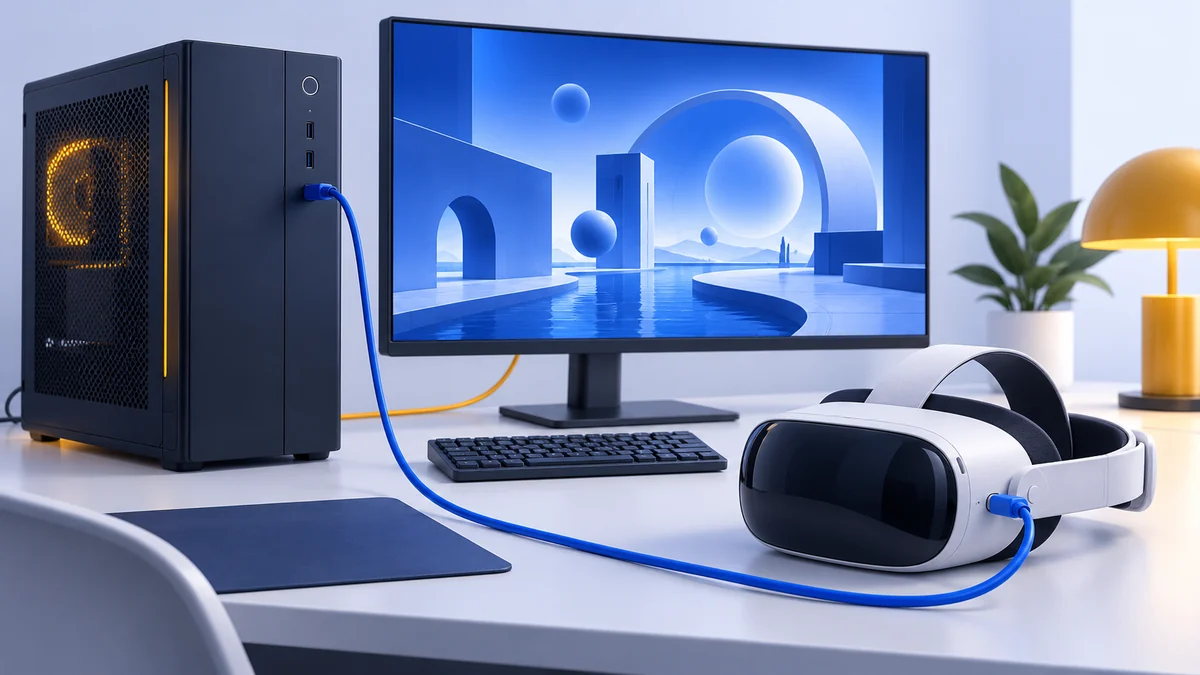
Quest Link vs Air Link is not a choice between PC graphics and standalone graphics. Both are PC VR. The question is whether a USB cable or your wireless network gives your play space the more useful connection.
There is no universal latency winner we can substantiate from the hardware names alone. We have not measured these routes on the same PC. The comparison below uses Meta’s support requirements and a practical process for finding the limiting part of your own setup.
Choose by your play space
Seated at the PC
Try USB Link first for racing, flight or a desk setup. Cable routing is easier to manage when you stay in one place.
Moving around the room
Air Link removes the headset-to-PC cable. Test Wi-Fi in the actual play area, including turns and movement.
Router far from the headset
Establish a wired baseline before buying a router. A cable can show whether the PC runs the game well without the wireless variable.
If your main goal is SteamVR setup, follow our Quest SteamVR guide. Steam Link is a separate wireless app; it is not another name for Meta’s Air Link.
What changes between Link and Air Link?
| Factor | USB Link | Air Link |
|---|---|---|
| Connection | USB data cable to the PC | Local Wi-Fi |
| Meta PC software | Required | Required |
| Game rendering | On the gaming PC | On the gaming PC |
| Main setup variable | Cable, port and connection stability | Coverage, interference and local network path |
| Physical trade-off | Cable needs routing and slack | No PC cable; headset battery still matters |
| Useful diagnostic role | Removes Wi-Fi from the test | Reveals whether your wireless play area works |
Meta defines the two routes in its current Link setup instructions. Neither route turns Quest into a direct DisplayPort headset. Choosing a USB cable does not remove the streamed-video part of the setup.
Buyers specifically seeking a direct graphics-card video connection should compare other PC VR headset designs, rather than expect a different cable to change Quest’s architecture.
Check a wired Link setup
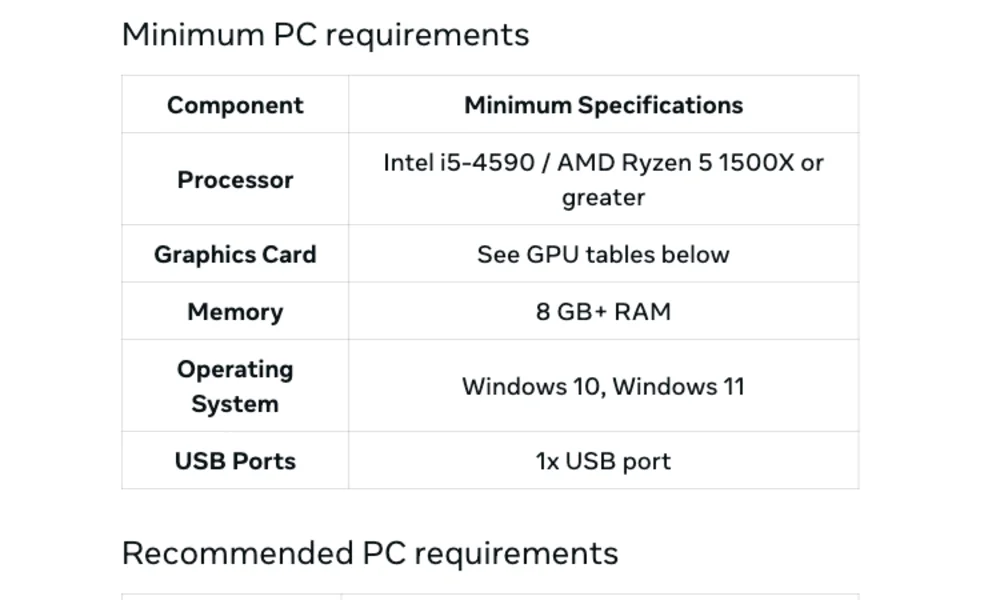
Meta’s setup page asks for USB-C 3.2 with at least 5 Gbps. A USB-C connector alone is insufficient: a cable can charge a headset while failing the data requirements for this connection.
- Check the cable's stated data speed, not just its charging wattage.
- Match the connectors to an appropriate PC port.
- Leave enough slack for normal head movement without pulling the headset socket.
- Route the cable clear of feet, chair wheels and sharp bends.
- Test a suitable direct PC port before adding hubs, extensions or adapters.
Do not assume the PC’s USB power output will keep the headset fully charged throughout every session. Data compatibility and charging behavior are different checks. Test your actual session length before buying a second charging accessory.
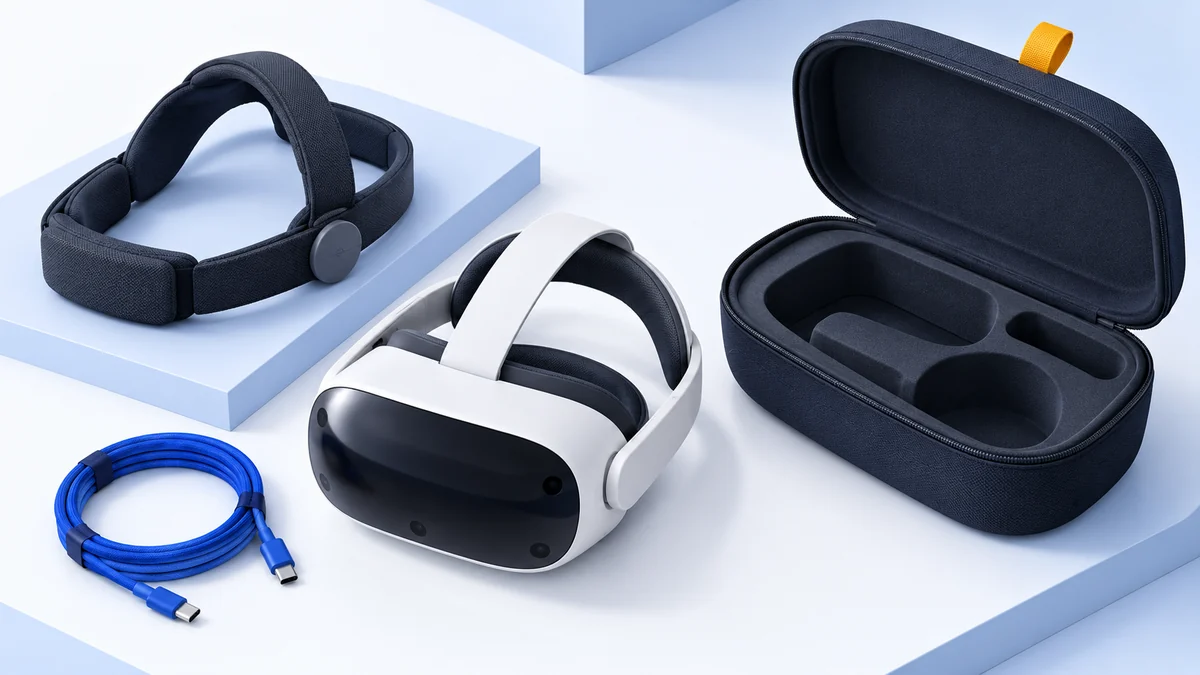
The official Meta Link cable is a documented option. It makes sense if you need a suitable long PC connection and its connector arrangement fits your computer. It is unnecessary if an existing cable works well or you will only play wirelessly.
Check an Air Link setup
Wireless VR depends on the short path inside your home. Think about where the PC, access point and headset sit, rather than starting with your broadband download result.
Meta prefers a 5 GHz network for Air Link. Walls, shared wireless traffic and another wireless hop can introduce variability even when the internet connection is fast. Meta’s technical explanation of Air Link interference describes dropped or late frames during network disruption; it is not a guarantee that a software setting will repair poor coverage.
Test when the network is normally busy, too. A connection that works while everyone else is offline may not represent your evening play session. If moving nearer the access point fixes breakup, investigate local placement before replacing the PC.
Connect through Meta's PC app
Install and update Meta Horizon Link on a compatible Windows PC, then update the Quest. For USB, attach the appropriate cable and select your computer in the headset’s Link controls. For Air Link, enable the wireless route, select the PC and confirm the pairing code on both devices.
Use Meta’s support page for the current button sequence. Once the connection opens, launch the PC VR app. Get this stage working before adding SteamVR or changing several performance settings.
For the computer itself, check Meta’s supported GPU list and the game’s requirements. A lower-quality wireless stream cannot compensate for a PC that struggles to render the game.
Compare them on your own PC
Use the same game, scene, rendered resolution and refresh setting. Start with defaults for the connection route. Try a quiet scene, then repeat the movement that causes a problem.
| Observation | What to investigate next |
|---|---|
| Both routes stutter in the same demanding scene | Game settings, rendered resolution and PC workload |
| USB works; Wi-Fi breaks up near the edge of the room | Coverage and local network path |
| Only USB disconnects | Cable seating, cable specification and PC port |
| Picture works but audio uses PC speakers | Playback-device selection |
This is a diagnostic comparison, not a laboratory benchmark. Avoid comparing one route at maximum quality with the other at reduced quality and then attributing the difference entirely to the cable.
Buy a cable or fix Wi-Fi?
Choose a Link cable when the PC is close, your sessions are seated, or you want to remove an uncertain network from the connection. Skip the purchase when you already have a working cable or a wireless setup that meets your needs.
View on AmazonPaid link
Work on Wi-Fi first when moving freely is essential and testing has isolated a wireless problem. Check placement and Ethernet before selecting new hardware. For comfort, charging and storage choices after the connection works, see Quest 3 accessories.
Link and Air Link FAQ
Is Air Link the same as Steam Link?
No. Air Link connects through Meta Horizon Link on Windows. Steam Link connects through Valve's headset app to Steam and SteamVR.
Will any USB-C charging cable work for Link?
No. Check the data specification. Meta's setup instructions call for USB-C 3.2 supporting at least 5 Gbps.
Does faster internet improve Air Link?
Your local PC-to-headset wireless path is the important connection. Broadband speed alone does not show whether that path has enough coverage or low interference.
Is Link always better quality or lower latency?
We cannot give a universal measured result. The PC, settings, cable and wireless network affect the outcome. Compare the same scene and settings on your setup.
Sources & research approach
Read how we research our guides and use the sources below to check the information behind this article.
Explore the related guides in PC VR.