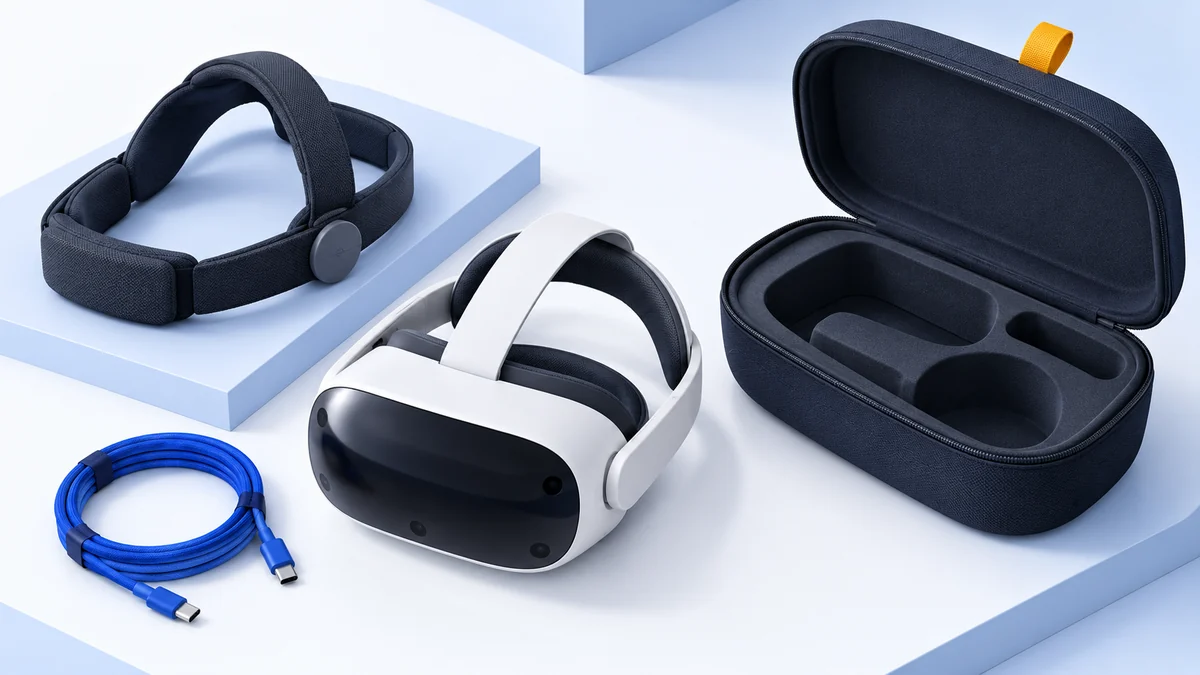
How to Play SteamVR Games on Meta Quest
Play SteamVR games on Quest 3 or Quest 3S with Steam Link, Air Link or a USB cable. Check the PC, connect the headset and diagnose the right part of the setup.
We may earn a commission when you buy through links on this page. As an Amazon Associate I earn from qualifying purchases. How this works
SteamVR games run on the PC and stream to your Quest. Steam Link connects wirelessly to SteamVR. Air Link and USB Link connect through Meta's Windows PC software first. Choose one route, get it working, then open a compatible PC VR game.
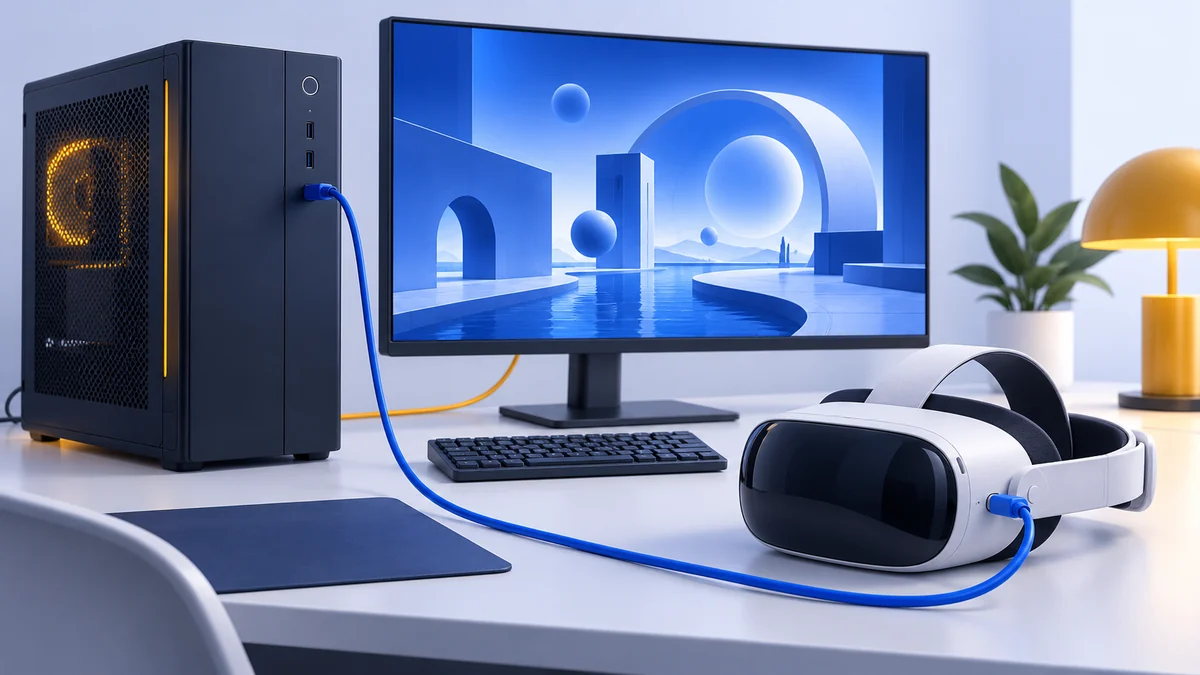
You can play SteamVR games on a Quest without replacing the headset. You do need a suitable computer: installing a streaming app on Quest does not make the headset run the Windows version of a game locally.
This guide focuses on setup for Quest 3 and Quest 3S. It uses Valve and Meta documentation checked on 13 October 2026; menu labels may change with headset updates. If you are shopping rather than connecting a headset you own, start with PC VR headsets.
What runs on your PC?
Keep three names separate. Steam is the PC store and library. SteamVR is Valve’s VR software. Steam Link is the streaming app on your headset. Meta Horizon Link is a separate PC connection route. Understanding that chain makes troubleshooting much easier.
The PC version of a game lives on the PC’s storage. A Quest’s larger storage option is useful for installed standalone apps; it does not replace a faster GPU or create more space on your computer.
Choose a connection route
| Route | Install on PC | Install or enable on Quest | Best starting point |
|---|---|---|---|
| Steam Link | Steam, SteamVR, your game | Steam Link app | You want wireless SteamVR access |
| Air Link | Meta Horizon Link, Steam, SteamVR, your game | Air Link in headset controls | You also use Meta’s PC library |
| USB Link | Meta Horizon Link, Steam, SteamVR, your game | Link in headset controls | Your Wi-Fi is unsuitable or you prefer a cable |
These routes are documented by Valve and Meta. Install one streaming route at a time for your first session. A working baseline tells you whether a later change improved the connection.
For a closer comparison of the wired and Meta wireless options, read Quest Link vs Air Link.
Before you start
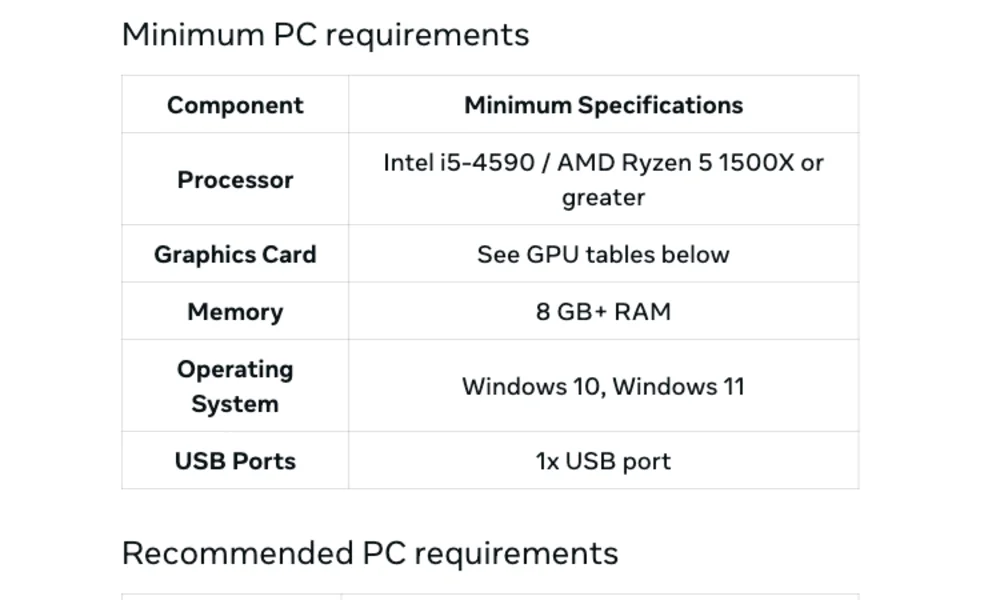
- Check the graphics card against your connection app's support list and the game's requirements.
- Update the headset, PC graphics driver and the software for your chosen route.
- Install SteamVR and a compatible VR game on the PC.
- For wireless play, connect the headset and PC to the same local network.
- For USB Link, check both the cable's data capability and the computer's USB port.
- Clear your play area and put on the controller wrist straps before entering VR.
Valve’s support page lists Windows 10 or newer and a 5 GHz Wi-Fi 5 network as Steam Link minimums; Wi-Fi 6 or 6E is recommended. Its GPU exclusions matter: an unsupported video encoder cannot be fixed with a faster internet plan.
Meta publishes a different Link compatibility list. Do not assume a GPU supported by one route is supported by every route. Our PC VR requirements guide helps you check your exact computer, including laptops.
Set up Steam Link
- Start Steam on your gaming PC and sign in. Make sure SteamVR is installed.
- Put your Quest on the same local network as the PC.
- Install the Steam Link headset app from the Meta store.
- Open Steam Link in the headset and follow its prompts to find and pair with the PC.
- After the connection opens, launch one compatible game from your Steam library.
That sequence follows Valve’s getting-started instructions. If pairing fails, solve discovery before changing graphics settings. The headset needs to find the PC before it can stream anything.
A nearby router or access point and an Ethernet connection from the PC provide a useful test arrangement. A distant mesh node or a PC using Wi-Fi adds another variable. Do not buy networking hardware until you know which part of your current connection is failing.
Set up Air Link or USB Link
Install Meta Horizon Link on the Windows PC. For USB Link, connect the suitable cable to the PC and headset, open the headset’s Quick controls, select Link, choose the PC and launch the connection.
For Air Link, open Link in Quick controls, enable Air Link, select the PC, and pair. Confirm that the pairing code shown on the computer matches the one in the headset. Launch the connection after confirmation. These are the steps in Meta’s current support guide.
Once the Meta PC connection is working, start SteamVR on that computer. Launch your compatible game in VR. If Meta’s desktop view works but SteamVR cannot see a headset, the fault is farther along the software chain than the USB or Wi-Fi connection.
For a wired setup, the existing official Meta Link cable listing is one option to inspect. Choose it if its connectors and length suit your PC and play space; skip it if you intend to stay wireless or already own a suitable data cable. A purchase is not necessary just to try Steam Link.
Check your first game before increasing quality
Start with default settings and a modest scene. Confirm that head movement, both controllers and audio work. Then check whether movement is smooth when you turn your head, rather than judging only a stationary menu.
If you adjust resolution, refresh rate or streaming quality, change one setting at a time. Record the original value so you can return to a known working setup. Raising every slider together hides whether the limit is GPU rendering, video encoding or the connection.
For a demanding social app, test a quiet world before joining a crowded instance. Our VRChat headset guide explains why the PC content itself can change performance dramatically.
Find the cause of a problem
| Symptom | First check | What the check separates |
|---|---|---|
| PC does not appear for pairing | Same network, PC app running, local discovery restrictions | Discovery from game rendering |
| Connected, but SteamVR has no headset | Correct connection session and SteamVR started on that PC | Streaming route from SteamVR |
| Quiet scene works; crowded game stutters | Lower game detail or rendered resolution | PC workload from network quality |
| Wireless breaks up when you move rooms | Test near the access point | Coverage from PC specifications |
| USB connection drops | Another suitable port and cable connection | USB path from graphics settings |
| Sound plays on the monitor | PC playback and headset audio selection | Audio routing from video transport |
Internet speed is not your local VR link. A faster broadband subscription does not repair weak Wi-Fi between the headset and the router. Test the PC-to-headset path before spending on an internet upgrade.
Quest SteamVR FAQ
Can Quest play SteamVR games without a PC?
These streaming routes require a computer to run the SteamVR game. A standalone Quest edition, where available, is a separate version running on the headset.
Do I need Meta Horizon Link to use Steam Link?
Steam Link connects to Steam and SteamVR through its own headset app. Meta Horizon Link is needed for the Meta Air Link or USB Link routes.
Does a USB cable turn Quest into a DisplayPort headset?
No. USB Link is still a streamed PC connection. It does not send a direct DisplayPort video signal to the Quest's display.
Should I buy Quest 3 or Quest 3S for SteamVR?
Both offer PC connection routes. Quest 3's optics and display are the main reasons to spend more; standalone storage is not a PC performance upgrade. See the Quest comparison.
Sources & research approach
Read how we research our guides and use the sources below to check the information behind this article.
Explore the related guides in PC VR.