Standalone vs PC VR: Which Way Should You Play?
Understand standalone and PC VR before buying a headset. Compare where games run, what hardware you need, library differences and the cost of a complete setup.
We may earn a commission when you buy through links on this page. As an Amazon Associate I earn from qualifying purchases. How this works
Standalone VR runs apps on the headset. PC VR runs them on a gaming computer connected to the headset. A Quest can serve both roles. Choose standalone for a simpler start and portable use; choose PC VR when your required games or content need the PC version.
Standalone vs PC VR is a decision about software, hardware and routine. It is not a reliable way to rank headsets from best to worst. A powerful setup you rarely connect may be less useful than a simpler headset you play every day.
This guide explains the two routes using current manufacturer and developer documentation checked on 13 October 2026. For individual headset recommendations after choosing a route, see our VR headset hub and PC VR buying guide.
Where the game runs
Standalone route
The app is installed on the headset and uses its processor, graphics hardware and storage. A gaming PC is not part of the normal play session.
PC route
The app is installed on the PC. The computer renders the scene, while the headset shows it and supplies tracked input.
Console route
A console runs the game for a compatible headset. PS VR2 on PS5 is a separate platform choice, rather than standalone VR.
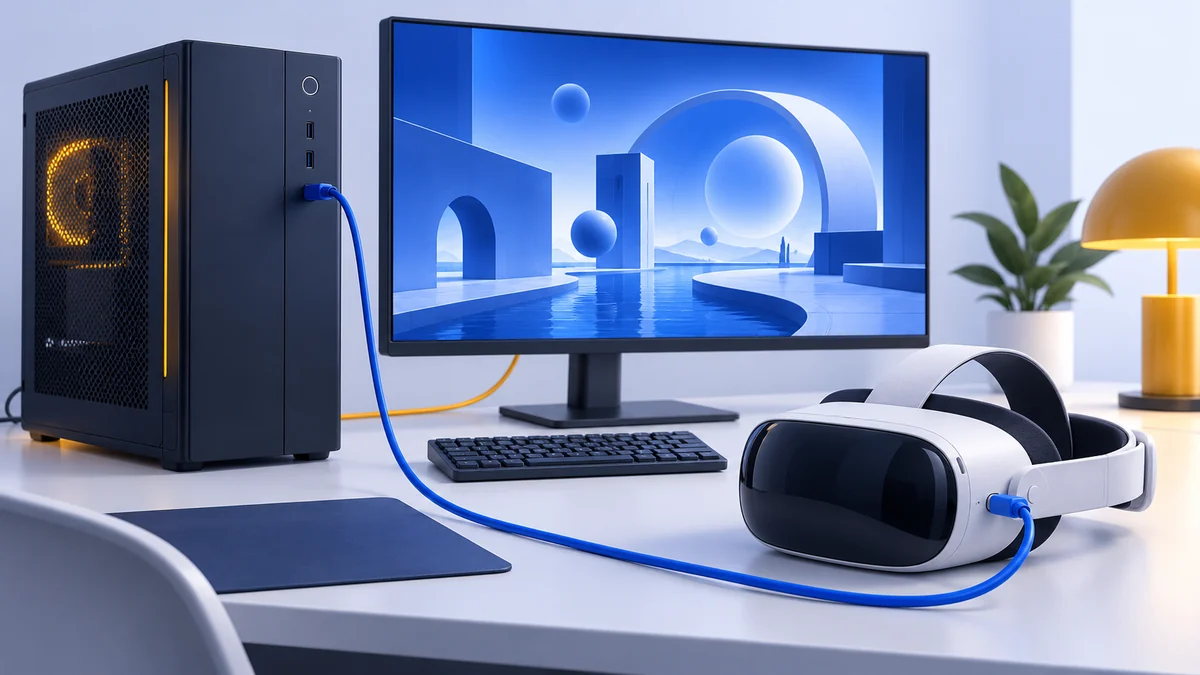
With a Quest PC connection, a streaming app transports the PC image and returns your input. USB Link is wired; Air Link and Steam Link are wireless options. A wireless headset can therefore still be a PC VR headset during a session.
Dedicated PC headsets may use a direct video connection instead. For example, Sony’s PS VR2 PC setup requires its adapter and DisplayPort hardware. “PC VR” describes where the application runs, not one universal cable standard.
Start with your games
Write down the experiences you would be disappointed to miss. Check the store page for each one, including platform, headset support and system requirements. That shortlist should lead the hardware decision.
| What you want | What to check |
|---|---|
| A standalone fitness or room-scale game | Does the Quest edition exist and support your headset? |
| A SteamVR-only title | Can your PC and connection route run it? |
| A detailed simulation | Game requirements, controller or peripheral support, PC workload |
| Social VR with friends | Cross-platform availability and content restrictions |
| A PS5 VR title | Does it explicitly support PS VR2 on PS5? |
The same app name can hide different builds. VRChat’s Android documentation limits avatar shaders and several components on standalone Android headsets. Joining the same social service does not guarantee access to the same worlds or the same appearance for every avatar.
Our VRChat headset guide explores that decision. The same habit helps with every store: verify the edition you will use, not just whether the franchise name appears somewhere.
Graphics and performance
A gaming PC can provide resources that a self-contained mobile headset does not. What you gain depends on the application and computer. There is no meaningful guarantee that every PC version looks better or runs more smoothly than every standalone version.
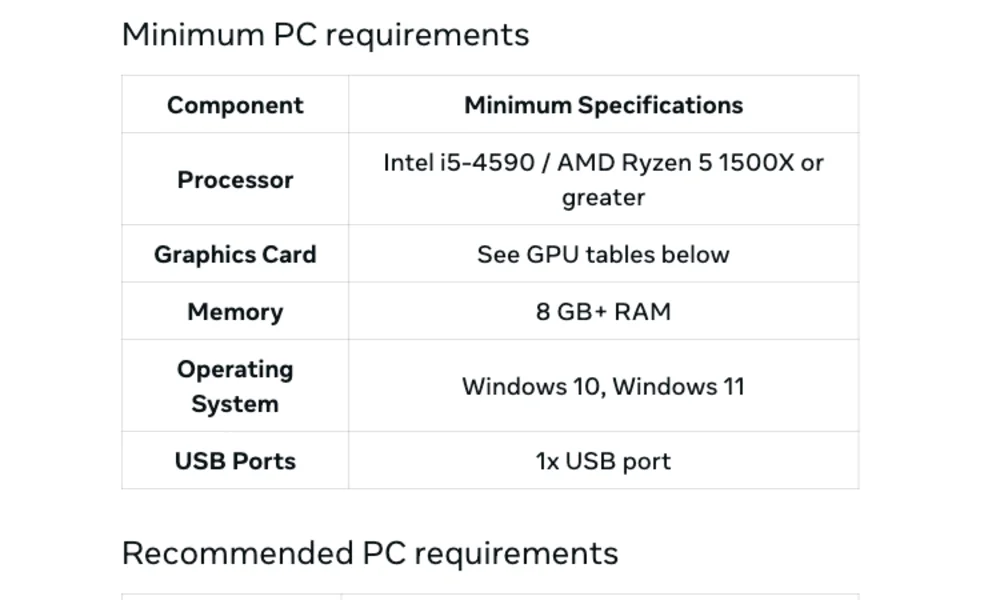
PC VR also adds demands. The graphics card must render the chosen scene at your settings. A streamed connection adds video transport and encoding requirements; wireless use adds a network path. Higher display resolution is not an automatic benefit if the computer struggles to supply the frames.
Standalone apps are designed around the headset’s hardware. Their trade-offs can include simplified environments or effects, but the setup has fewer external components to diagnose. Compare the app you want rather than extrapolating from a headset specification alone.
Before buying a PC upgrade, use our PC VR requirements guide. Distinguish the streaming app’s compatibility from the game’s requirements: passing one does not establish that you can run every game at maximum quality.
Movement and setup
Standalone play avoids a PC connection, which helps when you regularly move between rooms or want a short session. You still need a suitable play area, charged equipment and any account or network connection the app requires.
Wireless PC VR also removes the cable from the headset, but the PC remains part of the session. You need the computer on and a workable local network in the room where you play. Moving the headset to another room can change the connection quality.
Wired PC VR may suit a seated setup. Plan cable routing, enough slack for head movement and the correct ports before buying. If you prefer a Quest cable or Wi-Fi route, see Link vs Air Link.
Fewer setup steps can matter more than a specification upgrade. Picture an ordinary evening: where will you stand, which devices must be on, and what has to be charged? Choose a setup you can realistically keep ready.
Compare the complete cost
| Route | Include in the budget | Common overlooked item |
|---|---|---|
| Standalone | Headset, correct app editions, any necessary fit accessory | Buying convenience accessories before trying the stock setup |
| Quest PC VR | Headset, gaming PC, PC games, suitable USB or local Wi-Fi setup | Assuming an existing laptop or charge cable is compatible |
| Dedicated PC VR | Headset, PC, games, required ports and any tracking equipment | Base stations, controllers or an adapter sold separately |
| Console VR | Console, headset, supported console games | Treating PC and console purchases as transferable |
Storage is another difference. Standalone apps occupy headset storage. PC games occupy PC storage. Buying more headset storage does not make PC game rendering faster.
Keep prices and availability at the retailer, and compare the exact configuration. Our Quest 3 accessories guide helps distinguish a required connection item from an optional charging or storage convenience.
One headset can do both
A Quest 3 or Quest 3S can run standalone apps and connect to a compatible gaming PC. That makes a staged purchase possible: start with standalone use, then add PC VR when you have a reason and a suitable computer.
Changing modes means running a different application build. Do not assume a standalone purchase grants the PC edition, or that saves and multiplayer features transfer. Check the title’s store and account support before paying twice.
The Quest 3 vs Quest 3S comparison focuses on optics, storage and the complete purchase. Choose Quest 3 if its display and lens design justify the extra spend for your use; skip the upgrade if your existing headset already satisfies your needs.
View on AmazonPaid link
Choose a first setup
- No gaming PC: start by confirming that your wanted apps have standalone editions.
- Already own a capable PC: check headset and connection requirements, then test one PC VR title.
- Want both: choose a headset with documented standalone and PC routes.
- Already own PS VR2: check Sony's PC adapter requirements before buying another headset.
When ready, use Quest SteamVR setup for the PC connection. For a console-versus-Quest decision, read Quest 3 vs PS VR2.
Standalone and PC VR FAQ
Does standalone mean I never need internet?
No. Standalone means the app runs on the headset. Downloads, accounts, multiplayer and some applications may still require internet access.
Is wireless VR always standalone?
No. Air Link and Steam Link stream PC games wirelessly to Quest. The computer still runs the game.
Can a standalone headset play PC games later?
A headset with a supported PC route can. Quest 3 and Quest 3S offer this flexibility, but you still need a compatible gaming PC and the appropriate software.
Should I buy a gaming PC before trying VR?
Only if the experiences you want require it. A standalone headset can be a simpler start when its app library covers your priorities.
Sources & research approach
Read how we research our guides and use the sources below to check the information behind this article.
Explore the related guides in VR guides.