How to Watch VR Videos on PC: Monitor, Quest or PC VR
We may earn a commission when you buy through links on this page. As an Amazon Associate I earn from qualifying purchases. How this works
To watch VR videos on a PC monitor, use YouTube in a supported browser or a player that understands your file's projection. For a headset, stream the file to a Quest video app, or connect to Windows and run a PC VR player. Match both the 180°/360° projection and the 2D/3D layout; opening the file alone does not select the right view.

128 GB configuration
For a lower-cost standalone setupSupports standalone apps such as Virtual Desktop; a PC connection is a separate option.
Check first: Your chosen video app lists Quest 3S and supports your file format.
Check price on Amazon Paid link · Amazon
512 GB configuration
For pancake opticsThe same standalone and PC playback routes, with pancake lenses and a higher display resolution.
Check first: Whether the optical upgrade and fit suit your viewing; no new headset is needed for monitor playback.
Check price on Amazon Paid link · AmazonStart with the screen you want to watch on. A computer can supply a video file without running PC VR; a headset can also show a flat virtual cinema without turning the film into a surrounding scene.
Compatibility and source notes
Current instructions were checked against developer and support documentation on 16 October 2026. This is an editorial update to John's original tutorial, not a hands-on player comparison. App menus and supported formats can change; the linked developer pages own those details.
Choose your playback route
| Watch on | Start with | What the computer does |
|---|---|---|
| A PC or Mac monitor | YouTube in a browser; VLC for recognized 360° files | Plays the video; you move the view with the mouse or keyboard |
| A Quest headset, with files on a PC or Mac | SKYBOX and its AirScreen computer client | Shares files for the headset app to play |
| A headset connected to a Windows PC | A compatible PC connection and a player such as Whirligig | Runs the VR player through the headset's supported runtime |
Already have a working screen or headset? Try its route first. A new headset, graphics card or Link cable is not the first fix for an incorrectly selected video format.
Set the video format: projection and eye layout
Projection controls the shape of the video around you. Eye layout controls whether each eye gets a different image. They are separate settings: a 360° clip can be 2D or 3D, and a 3D film can stay on a flat cinema screen.
A regular 2D film: use a flat cinema screen
Choose the player's ordinary screen or cinema view and 2D mode. The headset gives you a virtual screen; it does not create a 180° or 360° camera view from an ordinary film.
A 3D film: choose side-by-side or top-bottom
SBS means the left and right eye images sit side by side. Top-bottom, also called over-under, puts one above the other. Select the layout that matches the file. On an ordinary monitor you may see both images rather than a 3D view; a suitable 3D display or headset can present them stereoscopically.
A panoramic clip: select 180° or 360°
180° covers a hemisphere; 360° surrounds the viewing position. A player must interpret that projection rather than show the stretched source image as a flat rectangle. A spherical recording does not automatically have a separate image for each eye.
A 3D panoramic clip: set both properties
For a file described as 180° SBS, select the 180° projection and side-by-side layout. Selecting only SBS will not wrap the scene correctly. YouTube's 3D documentation distinguishes rectangular 3D, VR180 and 360° stereo; SKYBOX's format guide documents the corresponding manual controls.
Watch VR videos on a PC monitor without a headset
YouTube panoramas and local 360° files
- For YouTube, open a genuine 180° or 360° video in an up-to-date Chrome, Firefox, Edge or Opera browser.
- Look for the pan control. Click and drag the picture to look around; YouTube also documents WASD navigation for 360° video.
- For a local 360° file, open it in VLC and check that the viewpoint responds. VideoLAN documents 360° navigation in VLC 3.0.
YouTube's playback instructions also explain the metadata used to identify spherical footage. If a local file stays stretched or split in VLC, do not assume that buying a headset will fix the file. Use a player with manual projection controls, or check the source's format information.
Previewing a stereo file on a normal screen
A normal screen can show the video file without reproducing binocular depth. Seeing the two source images is different from viewing them in 3D. If you want a desktop 3D option, Whirligig's developer lists anaglyph output for red/cyan glasses and output to 3D TVs or projectors; use the setting that matches your display.
For a stereo panorama, the player needs both the projection and eye-layout settings above. A desktop preview is useful for identifying a file and its framing, even when you plan to watch it in a headset later.
Play video files from your PC or Mac on Quest
SKYBOX supports local and network playback, including AirScreen, SMB and DLNA. For a first connection, its official AirScreen instructions give this route:
- Install SKYBOX for your supported headset and its PC/Mac client from the developer's download page. Add your video files to the computer client.
- Connect both devices to the same local network. Open AirScreen in the headset app and select the computer.
- Choose Files. If the picture is wrong, open the playback control panel and correct Stereo Mode.
On a Mac, choose file playback. SKYBOX's current AirScreen guide explicitly says it cannot mirror a Mac screen. Its separate Windows Desktop option is not the same operation as opening a shared movie file.
For a virtual desktop from Windows or macOS, investigate the standalone Virtual Desktop app and its computer Streamer. Its developer separates desktop streaming from PC VR game streaming, which requires Windows. The Steam Classic and standalone headset editions are different purchases; select the edition that lists your headset.
Use a Windows PC VR player with a connected headset
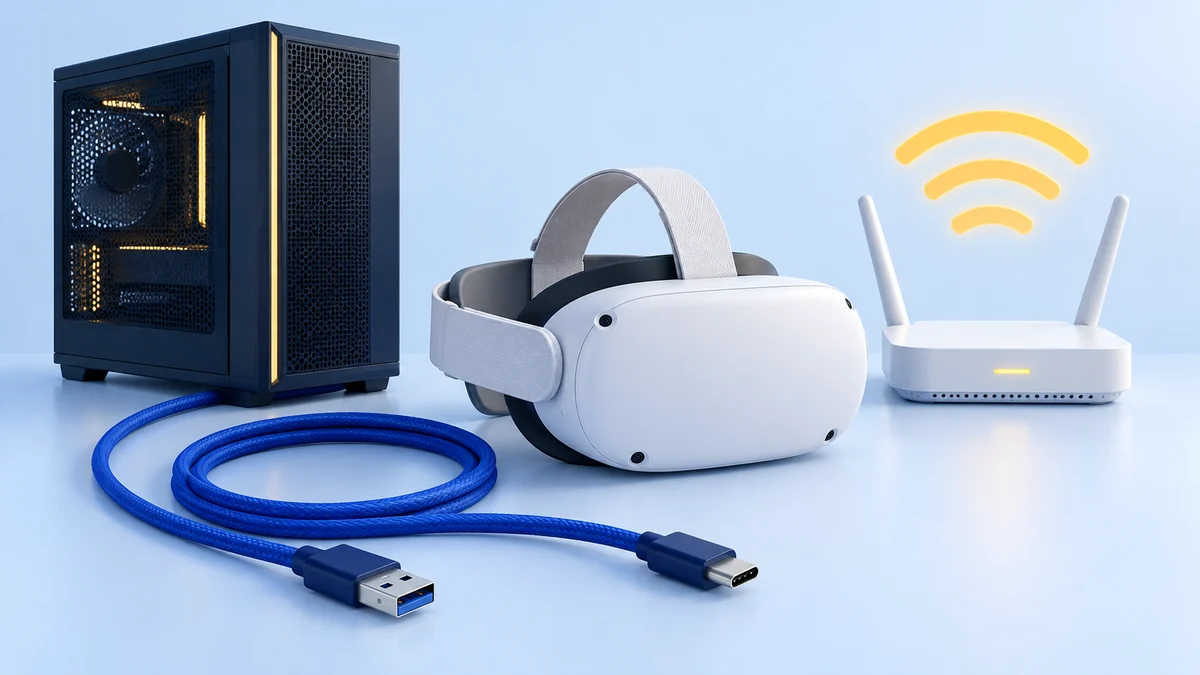
Choose this route when you already use a PC-connected headset or want the PC to run the player. For Quest, Meta Horizon Link needs a compatible Windows computer and either a suitable USB data cable or Air Link over Wi-Fi. Our Link vs Air Link guide covers that connection; Quest SteamVR setup covers Steam's software.
- Get the headset working through its supported PC connection before opening a movie.
- Install a compatible VR media player. Whirligig's developer lists Windows, OpenXR/SteamVR, 2D/3D playback and manual 180°/360° projections.
- Open the file in the VR player and select its projection and stereo layout. A desktop window shown inside the headset is not automatically a head-tracked panorama.
The Windows routes above do not apply to a Mac. Use file playback or a supported virtual-desktop app instead. For another headset, follow the manufacturer's connection requirements; for example, PS VR2 on PC needs its own adapter and setup.
Fix split screens, stretched scenes and missing files
| What you see | Check first | Next action |
|---|---|---|
| Two images beside or above one another | Eye layout | Select SBS or top-bottom to match the source; also select 180°/360° if it is a panorama |
| A stretched image or the wrong scene shape | Projection | Choose the correct flat, panoramic or camera-specific projection; check source metadata if unknown |
| SKYBOX cannot find the computer | Local discovery | Check the same LAN, app firewall permission and router isolation; follow SKYBOX's connection checklist |
| Only one file fails or stutters | The file and decoding path | Try a known-working file, then the problem file locally and over the network to separate playback from sharing |
In SKYBOX, Auto can retry recognition; its developer also documents filename hints such as movie_LR_180 for a side-by-side 180° clip. Rename a file only when you know its actual format. A naming hint cannot change the way it was recorded.
VR video playback FAQ
Can I watch VR videos without a headset?
Yes. You can view supported spherical videos on a monitor and move the view with a mouse or keyboard. A normal screen will not reproduce a headset's surrounding view or automatically display stereo depth.
Can VLC play every 180° or 360° file?
VideoLAN documents 360° navigation, but that does not guarantee every file's projection metadata or encoding will be recognized. If the picture stays flat or distorted, check the file format or use a player with manual projection controls.
Do I need Meta Link to stream a movie file to Quest?
No. The SKYBOX file-sharing route uses its headset app and AirScreen or a supported network share. Link is a separate way to run a Windows PC VR player.
Can I watch Mac files in Quest without mirroring the Mac?
Yes. SKYBOX documents PC/Mac file streaming through AirScreen. Its current guide says Mac screen mirroring is unsupported, so choose Files rather than assuming its Desktop option works on a Mac.
Check what you need before buying hardware
If you only want to preview a video, start with your monitor. For viewing in a Quest, check your chosen app's supported devices and try the existing network before buying accessories. Our Quest 3 vs Quest 3S comparison explains the hardware differences if you still need a headset.
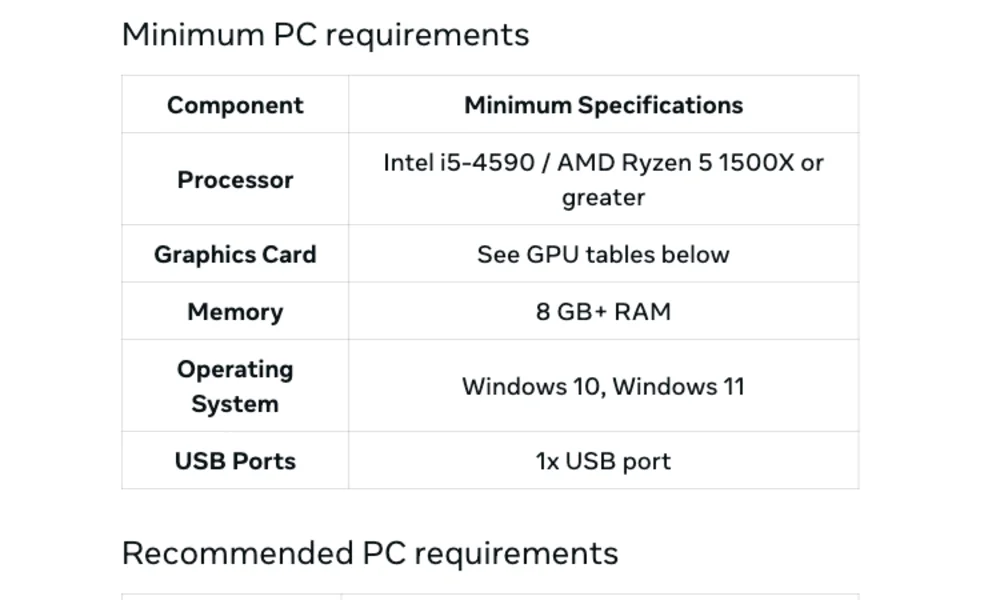
The current Quest 3S listing and Quest 3 listing are options to inspect after choosing your apps and checking fit. For a full PC connection, start with PC VR requirements and our PC headset guide.
Older equipment and software from the original tutorial
Phone viewers, anaglyph glasses and earlier PC headsets
The original tutorial also covered phone viewers, red/cyan anaglyph glasses and the original HTC Vive. These links identify that equipment; they are not the starting shortlist for a new setup. See the Vive archive or Rift archive for those platforms' current limits.
Older Kolor Eyes, Vive Video and Windows Movies & TV instructions should not be treated as interchangeable with the current players above. Virtual Desktop Classic is also a different edition from the standalone headset app. Follow the developer's instructions for the edition you install.
Research behind this guide
Check the linked specifications and support documents, or read how we research. Original review experience stays attributed to its author.
View 28 sources
- Kolor: GoPro VR Player download page (closure notice)
- Viveport Video on Steam
- Whirligig VR Media Player on Steam
- Virtual Desktop Classic on Steam
- Virtual Desktop on Meta Quest (Meta Store)
- Virtual Desktop official site
- UploadVR: Virtual Desktop's new macOS update
- SKYBOX VR Video Player on Meta Quest (Meta Store)
- VLC media player (VideoLAN)
- DPReview: VLC 3.0 technical preview launches with 360 video and photo support
- Microsoft Q&A: Getting 360 videos to work with Windows Media Player on Windows 11
- Microsoft Q&A: Movies & TV 360 view problem after Windows 11 24H2 (user reports)
- YouTube Help: Upload 180- or 360-degree videos
- YouTube Help: Upload 3D videos
- 360 Rumors: How to watch 3D videos on YouTube
- Wikipedia: Google Cardboard
- Meta Quest Help: Set up and connect Meta Horizon Link and Air Link
- Meta Quest Help: Allow content from unknown sources
- Meta Quest headsets
- TechCrunch: Valve drops VR support for macOS
- UploadVR: Original HTC Vive coming out of the market with Cosmos launch
- Wikipedia: Oculus Rift S
- Road to VR: Valve announces Steam Frame price, release date and accessories
- VideoLAN: VLC 3.0 and 360-degree navigation
- SKYBOX: supported video formats and local streaming
- SKYBOX: How to Use AirScreen
- SKYBOX: How to Adjust 2D/3D/VR Video Formats
- SKYBOX: Why Cannot I Connect my VR Headset to my Computer
Explore the related guides in PC VR.