Pasonomi VR Headset: Phone Fit, Setup and Current Status
We may earn a commission when you buy through links on this page. As an Amazon Associate I earn from qualifying purchases. How this works
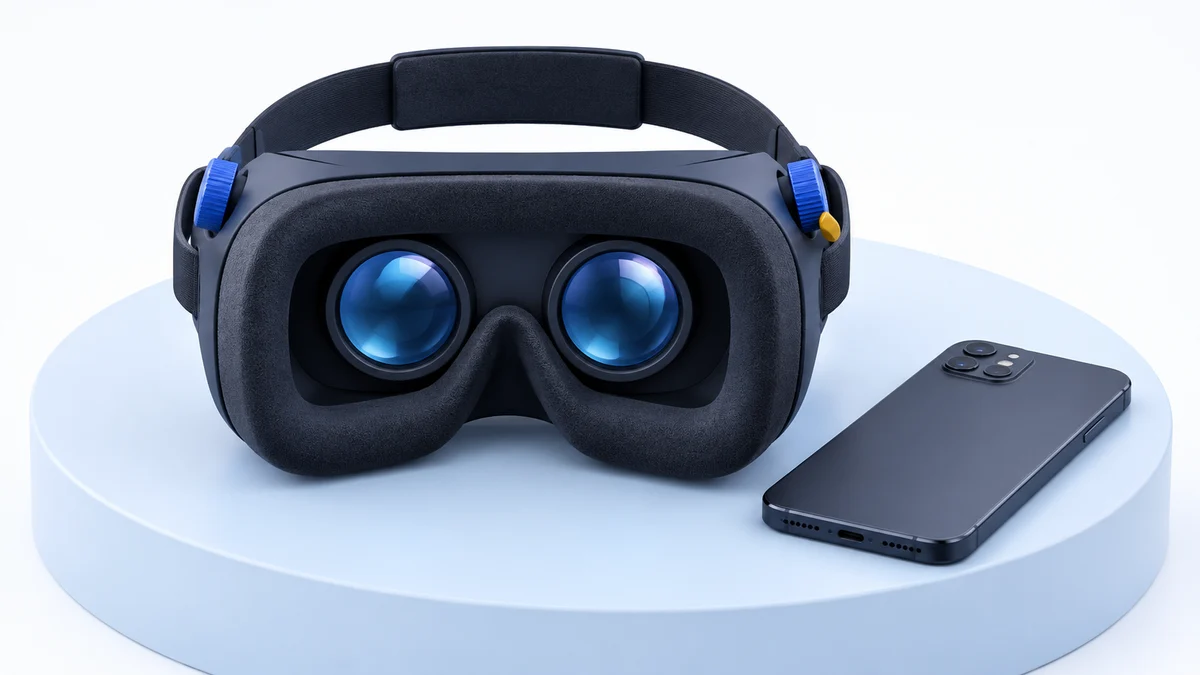
The Pasonomi VR headset is a passive phone viewer: your phone supplies the screen, apps and motion sensing. Consider one only if your exact phone fits, a current split-screen app works and you can operate that app with the phone enclosed. We have not verified current manufacturer support or a model-specific QR profile.

128 GB configuration
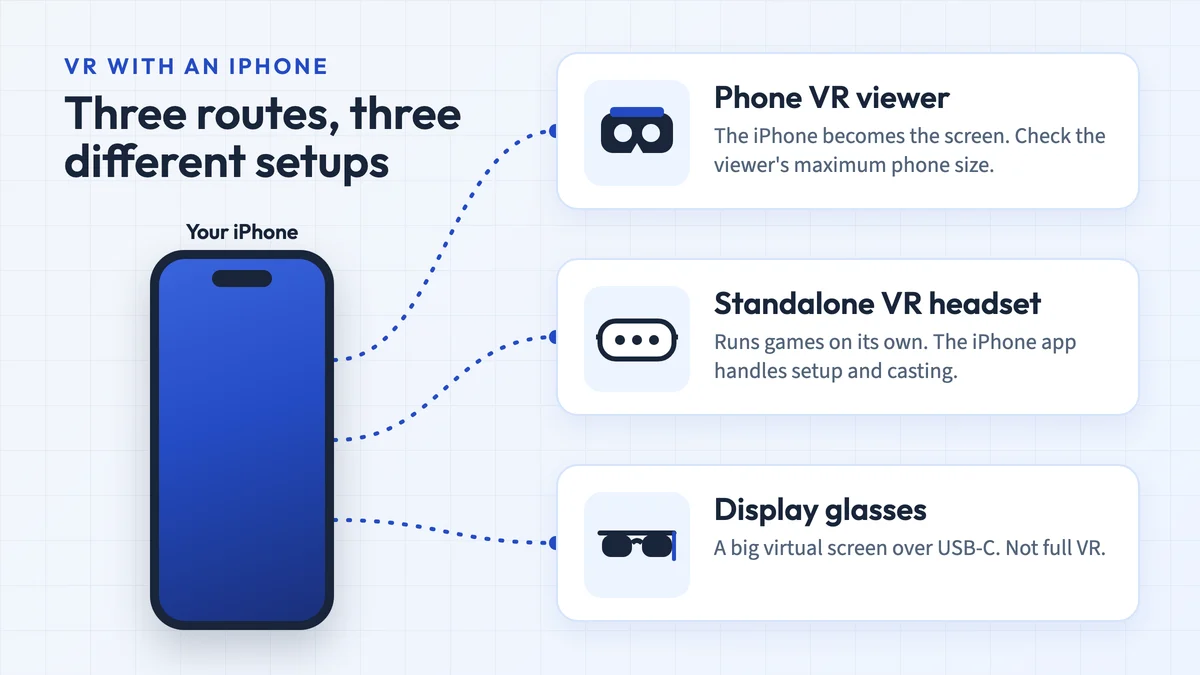
For Quest games and tracked controllersRuns its own apps; your phone is not inserted as a display.
Check first: The intended games, account requirements, optical fit and exact retailer bundle.
Check price on Amazon Paid link · Amazon
512 GB configuration
For pancake optics in the Quest platformCompare the optical upgrade with Quest 3S before spending more.
Check first: Whether the lenses and fit suit you, plus the same account and app requirements.
Check price on Amazon Paid link · AmazonAlready own a Pasonomi? Start by testing the app outside the viewer, then check the tray, lens alignment and controls. The holder does not need pairing or a cable to the phone; any separate remote has its own connection requirements.
Buying one now? Ask for the actual unit’s tray dimensions, input method, optical profile and return terms. The old 4.7–6-inch screen claim is an archive specification, not a confirmed fit guarantee for your phone.
Product status and research notes — checked 16 October 2026
This is TechFuturae’s researched update of John’s original 2020 article. We have not retested the headset. We could identify the original Pasonomi retailer listing, but could not verify a current manufacturer manual, support service or maker-issued Cardboard profile. That uncertainty does not establish discontinued production.
The original article described a passive viewer with adjustable lenses, a three-strap harness and no built-in audio or input button. Check those details against the unit you have: current listing fields and older descriptions are inconsistent. Prices, stock and the included accessories must be checked with the seller. The earlier comparison sources remain in the bibliography for historical context.
Check your phone and intended use
Decide whether you need a phone viewer
A Pasonomi makes sense to investigate for a phone-based video or Cardboard experience you have already found. Buying the holder does not supply an app library, a display or tracked hand controllers. For games built for a standalone headset, compare the complete setup in our standalone vs PC VR guide.
Check the physical phone, not just its screen size
The original article quoted a 4.7–6-inch screen range. We have not reconfirmed the tray’s maximum width, height or thickness. A diagonal screen measurement alone cannot establish fit: the phone body, camera bump, case, clamp and button positions also matter.
Ask the seller to confirm the dimensions of your exact phone against the actual tray. Check that the latch closes without force, the holder does not press the phone’s buttons and the display centre can align between the lenses. Do not infer compatibility from an old “all Android phones” or “iPhone” label. Our phone VR compatibility guide explains the separate app, sensor, input and fit checks; Apple’s model comparison helps identify your phone’s display.
Find a working app before buying
Google still links the Cardboard app for Android and iOS. Its current iPhone listing requires iOS 15 or later. That establishes the app’s OS requirement, not Pasonomi fit or compatibility with every experience.
On Android, Google’s setup help notes that an incompatible-device message may mean the phone lacks a gyroscope. Install the intended app and check that turning the phone changes the view before enclosing it.
For YouTube, use the Android app. YouTube’s current Cardboard instructions explicitly exclude iPhone and iPad. They also exclude VR180/360 playback in mobile browsers. On iPhone, check a separate app’s current split-screen support instead of buying a viewer on the assumption that YouTube will work.
Identify the Pasonomi viewer
The original listing linked by this article uses ASIN B0187DR12G. Match the name, photos, tray, adjustments and included accessories to the item being offered. Do not substitute specifications for a similarly named Pansonite or another generic viewer.
| Check | What we can establish |
|---|---|
| Screen and computing | The original Pasonomi is a passive phone holder with lenses; the phone runs the experience. |
| Phone size | The archived claim is 4.7–6 inches; usable tray dimensions and current phone fit remain unverified. |
| Input | The original article describes no built-in button; inspect the unit and test the app’s controls. |
| Lens adjustment | Adjustments were described in the archive; we have no verified current adjustment range. |
| Tracking | The phone and app supply head rotation; the holder adds no room tracking. |
| Current support | No current maker manual or model-specific optical profile was verified on 16 October 2026. |
The original Pasonomi listing is retained for identifying the model. A retailer page alone does not establish ongoing manufacturer support.
Set up a Pasonomi with your phone
This is a general passive-viewer checklist based on Google’s Cardboard setup, not a replacement for an unverified Pasonomi manual.
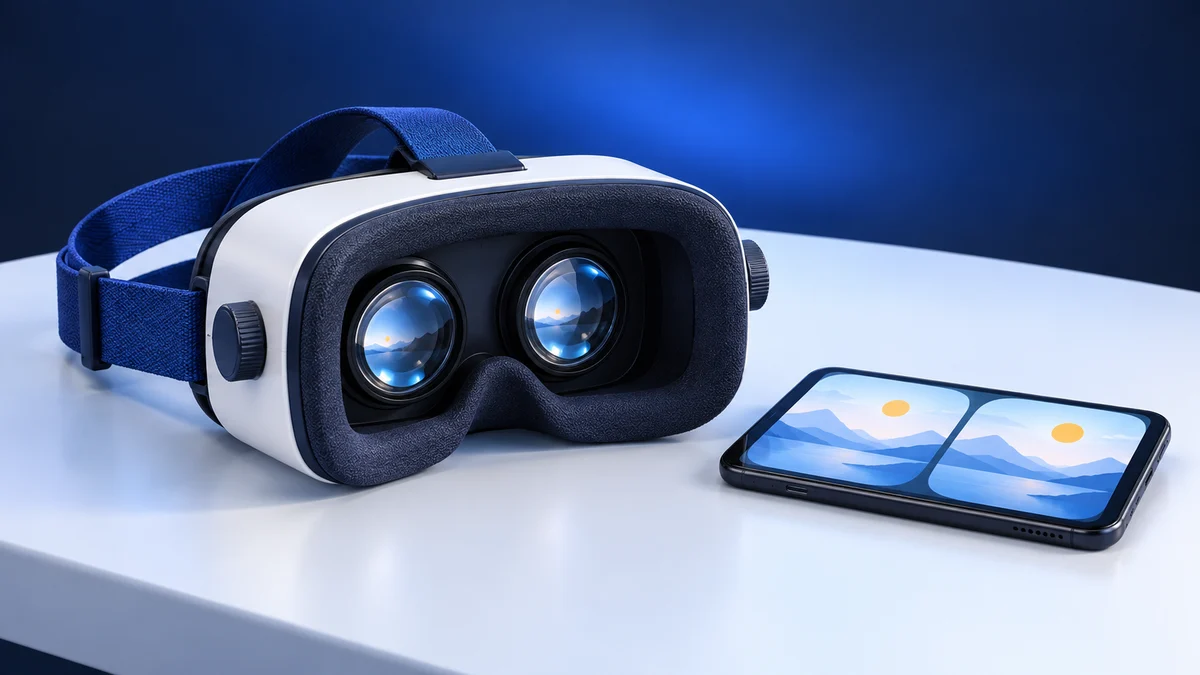
- Test the app outside the viewer. Open its Cardboard or VR mode and confirm that it shows a separate image for each eye. A normal full-screen video will not become a VR presentation just by putting the phone behind lenses.
- Check the controls. Work out how you will select, pause and exit. If the app needs a screen tap that the closed viewer cannot reach, choose a documented input method before continuing.
- Configure the viewer profile where supported. Scan a code supplied for the exact viewer. See the QR guidance below if you do not have one.
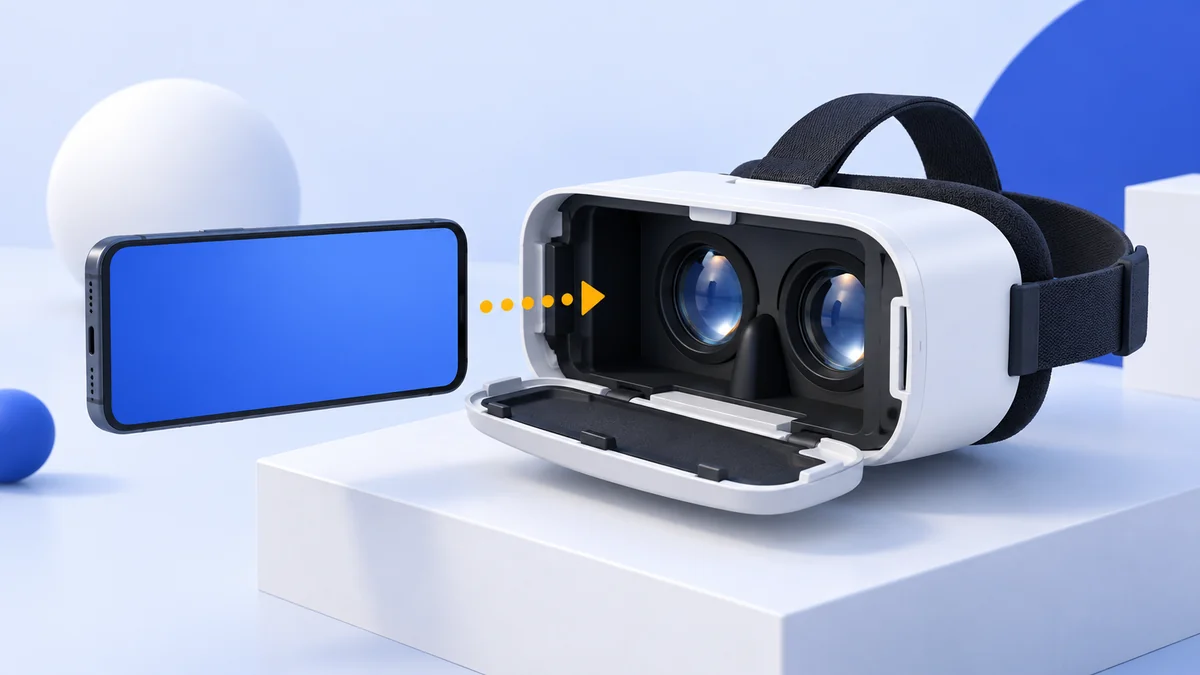
- Centre and secure the phone. Align the split between the two views with the viewer’s centre. Check the latch and clamp without forcing them, then adjust the straps to hold the viewer in place.
- Adjust and check the image. Use only the adjustments present on your unit. If you cannot align the image, remove the phone and recheck its position, the app’s viewing mode and the profile rather than assuming more strap tension will fix it.
There is no universal Pasonomi app installation or Bluetooth pairing step for the passive holder itself. Pair a separate remote only if its instructions and your app document support.
Find a matching Pasonomi QR profile
We have not verified an official Pasonomi Cardboard QR code. First check the unit, packaging and any manual supplied with it. Ask the seller for a profile for that exact model, not a download link to an unrelated VR app.
Google’s missing-code help recommends looking on the viewer manufacturer’s website and links to creating a profile if no code can be found. Its manufacturer guidance explains why the correct optical parameters matter: different lenses or enclosures need their own profile.
A code labelled “Pasonomi” on an unofficial website is not a profile we can certify. Do not assume a Google Cardboard default or another viewer’s code matches this unit. Creating a profile involves calibration; it is not a one-click substitute for missing manufacturer specifications.
Pasonomi controls, tracking and fit
Inspect the tray, straps and faceplate
On an older unit, check the latch, phone retention, lens condition, padding and strap attachments. The original design description is useful for identifying parts, but it does not establish the condition of a particular second-hand headset.
Treat the field of view as unverified
We have no verified current maker specification or independent measurement for this Pasonomi’s field of view. Phone placement and optical configuration need to match the experience; an unsourced viewing angle is not a useful basis for comparing headsets.
Head rotation comes from the phone
Turning, nodding and tilting are the three rotational axes commonly described as 3DoF. In a compatible Cardboard app, the phone supplies orientation; Google’s SDK documentation describes using head orientation to render the view.
The passive holder adds no positional tracking or tracked hand controllers. Do not expect leaning or walking to work like a six-degree-of-freedom headset just because the image follows head rotation.
Confirm how to select and pause
The original article describes a unit without an input button. That matters because some Cardboard experiences use a viewer button, while other apps provide their own selection method. Test the exact app; a Bluetooth connection alone does not prove a remote can control it.
The Android remote listing referenced in the original article remains for identifying that accessory. Its compatibility with a current phone, OS and app is unverified; it is not a necessary purchase for every owner.
Audio comes from your phone
No built-in speakers were described for the original Pasonomi. Use an audio route supported by the phone, checking that any plug or cable fits around the tray. A side opening does not guarantee clearance for every connector or adapter.
Check padding and fit in person
We have not measured comfort, strap pressure or heat for this headset. Ask about the condition of the padding and whether returns allow you to assess the complete viewer with your phone installed.
Verify what the lens adjustments actually change
The archive describes lens-spacing and focus adjustments, but we have no verified current range or eyeglass clearance. Inspect the controls on the actual unit and ask for those specifications before assuming it will suit your prescription or fit.
A camera opening does not verify AR compatibility
The original article described a removable faceplate section for the phone camera. We found no maker-backed list of compatible AR apps or supported stereoscopic camera experiences. That cutout is not sufficient evidence to recommend this viewer for mixed reality.
Check each phone and case combination
Android or iOS support is an app question; fitting in the tray is a separate hardware question. Use the physical checks above even for a smaller phone. Neither the operating-system name nor the archived screen range verifies the complete setup.
Account for what else you would need
Compare the total cost of the holder, a suitable phone if you do not already own one, any paid app and any input accessory the app actually requires. We leave current price and stock to the retailer. A cheap holder is poor value if the intended experience cannot run or be controlled.
Use the app’s current requirements
The passive holder runs no software of its own. The app’s store listing, phone sensors, input support and viewer profile determine the usable experience. An old installation link or a “works with Cardboard” description does not guarantee that every app still works today.
Reading older Pasonomi reviews
We have not verified a current review count or rating. Read comments for the exact model and look for the phone, OS, app and input method the reviewer used. A report about an iPhone 6 does not verify your current phone.
The original Pasonomi customer-review link is retained as a lookup, not a current rating endorsement.
What to choose instead of a Pasonomi
- For phone-based viewing: compare a viewer with published tray dimensions, a matching optical profile and an input method your app supports. Our phone VR options under $50 guide explains what to check; verify the exact bundle and total cost.
- For standalone VR games: compare Meta Quest 3S and Meta Quest 3. They run their own apps and use tracked controllers; a phone is used for setup tasks, not inserted as the headset’s screen. Meta’s comparison and our Quest 3 vs 3S guide explain the hardware differences. Check account requirements, fit and support for your intended games before buying.
Earlier Noon, Rift and Vive comparisons
Open the earlier comparison references
These products appeared in John’s original article. The links identify older equipment; they are not the current buying shortlist.
Noon VR: software support unverified
FXGear still describes NOON VR as a phone headset and app combination. That description does not verify that the companion service still works. See our Noon VR archive before relying on its old app features. The original Noon retailer listing is retained for identification.
Oculus Rift: an earlier PC VR platform
The original Rift comparison concerned a PC headset with its own display, sensors and controllers. Its old GPU and CPU suggestions should not be treated as requirements for current PC VR games. See the Rift archive for that platform’s limits. The original production-history references remain in the source list.
HTC Vive: identify the original system
The original Vive listing refers to a PC system with separate tracking hardware. It is not a phone viewer. HTC’s original system requirements and play-area guidance describe that system; also check our Vive archive and the requirements of the actual apps you intend to run.
Pasonomi VR headset FAQ
How do I connect a Pasonomi VR headset to my phone?
The passive holder itself does not pair with the phone. Open a compatible split-screen app, configure the viewer profile if supported, then centre and secure the phone in the tray. A separate remote may need pairing and app support.
Which app should I use with a Pasonomi?
Start by checking the official Google Cardboard listing for your phone, then test the experience and its input method outside the viewer. We have not verified a current Pasonomi companion app. On Android, YouTube documents a Cardboard mode; that mode is not supported on iPhone or iPad.
Where is the Pasonomi QR code?
Check the unit, its packaging and manual first. We have not verified a manufacturer-issued code. Ask for the profile for your exact model; Google’s missing-code guidance explains the calibration route if one cannot be found.
Will a Pasonomi work with my current iPhone?
Not automatically. The app must support your iOS version and input method, and the actual phone must fit and align in the tray. The old 4.7–6-inch screen range does not establish physical fit. YouTube’s Cardboard mode is not an iPhone option.
Is a Pasonomi worth buying now?
For an existing owner, first test the phone, app and controls you already have. For a buyer, we would only consider the viewer after confirming physical fit, a working experience, usable input and return terms. With manufacturer support and the optical profile still unverified, it is not our starting recommendation for a new VR gaming setup.
Research behind this guide
Check the linked specifications and support documents, or read how we research. Original review experience stays attributed to its author.
View 19 sources
- Google Cardboard (Google AR & VR)
- Google Cardboard app (Apple App Store)
- Watch VR videos and 360 videos (YouTube Help)
- Google Store stops selling Cardboard VR headsets (9to5Google)
- Compare iPhone models (Apple)
- Meta Quest headsets compared (Meta)
- An update on Meta Quest pricing (Meta)
- Facebook to discontinue Rift product line in 2021 (Road to VR)
- Oculus Rift (Wikipedia)
- Oculus Rift CV1 (Wikipedia)
- HTC is retiring the original Vive (UploadVR)
- VIVE system requirements (HTC Vive support)
- Planning your play area (HTC Vive support)
- Google Cardboard: Android setup and phone sensors
- Google Cardboard: Missing or invalid QR codes
- Google Cardboard: Viewer profiles and optical parameters
- Google Cardboard: Android SDK, head orientation and rendering
- Meta: Quest 3S hardware and controllers
- FXGear: NOON VR product description
Explore the related guides in VR headsets.